Contractors
Quick Start Guide: Boldr - Installer App & Controller Setup
Welcome to the Boldr Pro ecosystem. This guide will walk you through setting up your account, joining your organization, and installing your firPart 1: Getting Started
1. Download the Boldr Pro App & Create Your Account
First, download the Boldr Pro app from your app store.
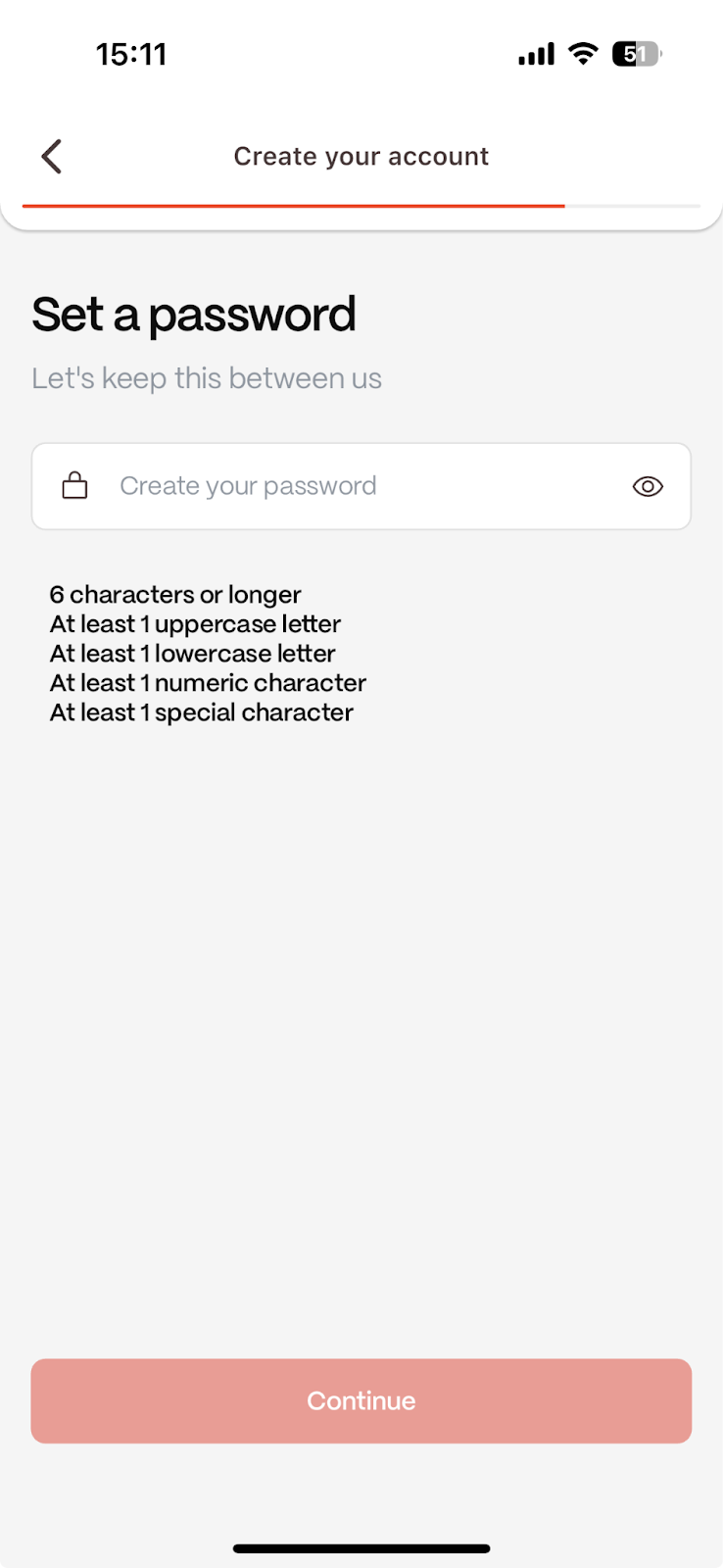
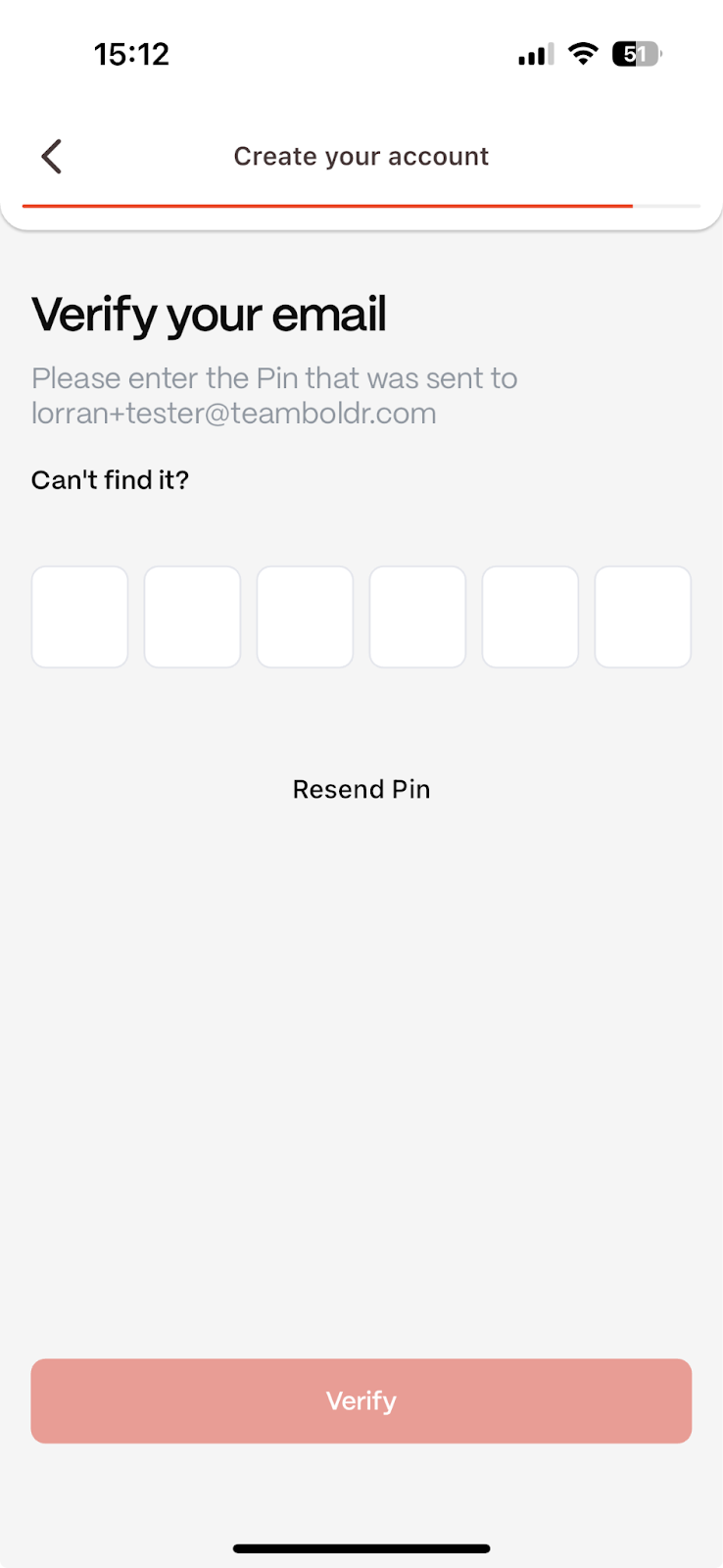
Once installed, open the app and create a new account using your work email address.
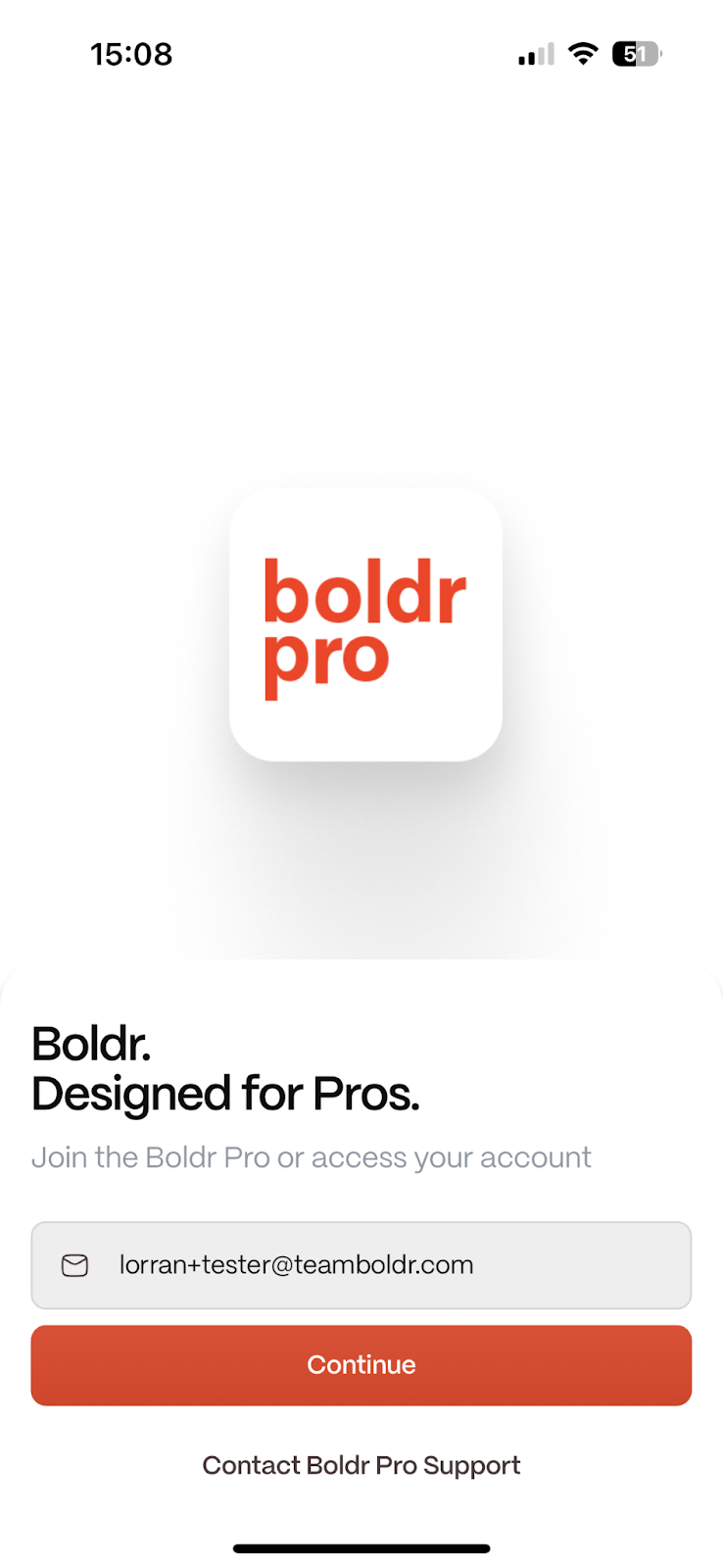
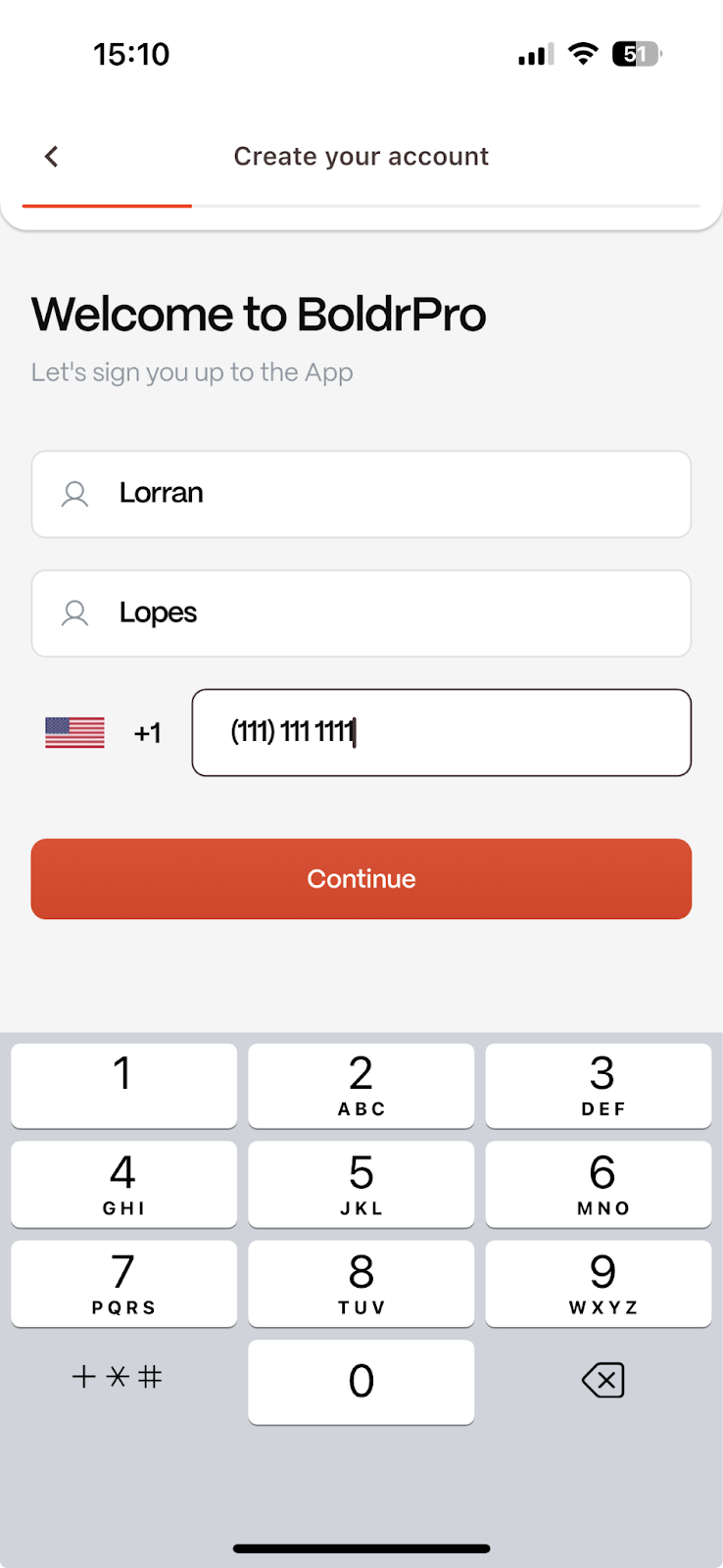
2. Join Your Organization
After creating your account, the app will automatically attempt to link you to your organization based on your email address. We invite you to use your professional email when creating your account as using a personal Gmail address will not grant you access to the app.
There are several possible scenarios. Find the one that matches what you see on your screen.
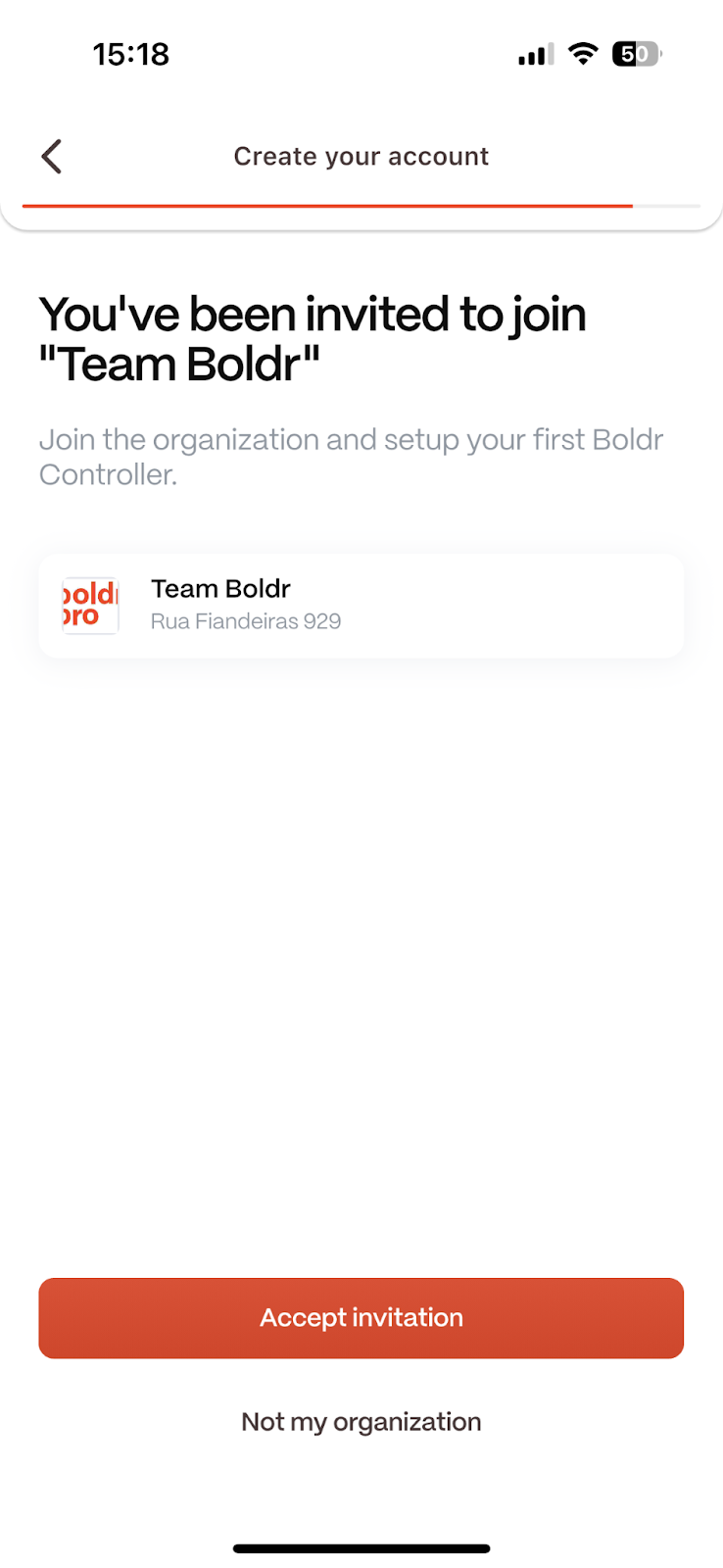
Scenario 1: You received an invitation. (Install team)
What you'll see: An invitation screen.
What to do: Tap Accept Invitation.
Scenario 2: Your professional email grants you automatic access. (Install team)
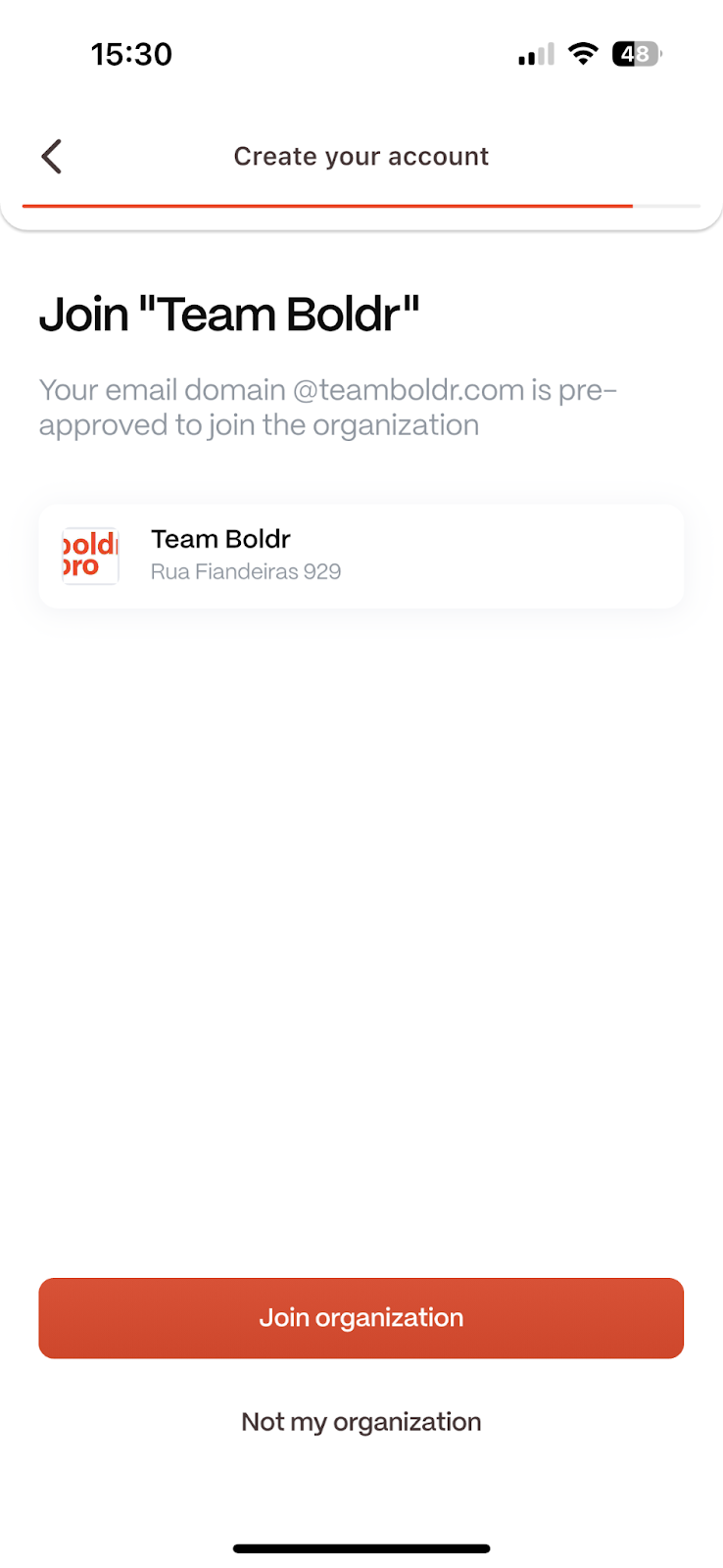
What you'll see: A page explaining that you have access to the Boldr demo account.
What to do: Tap Join Organization.
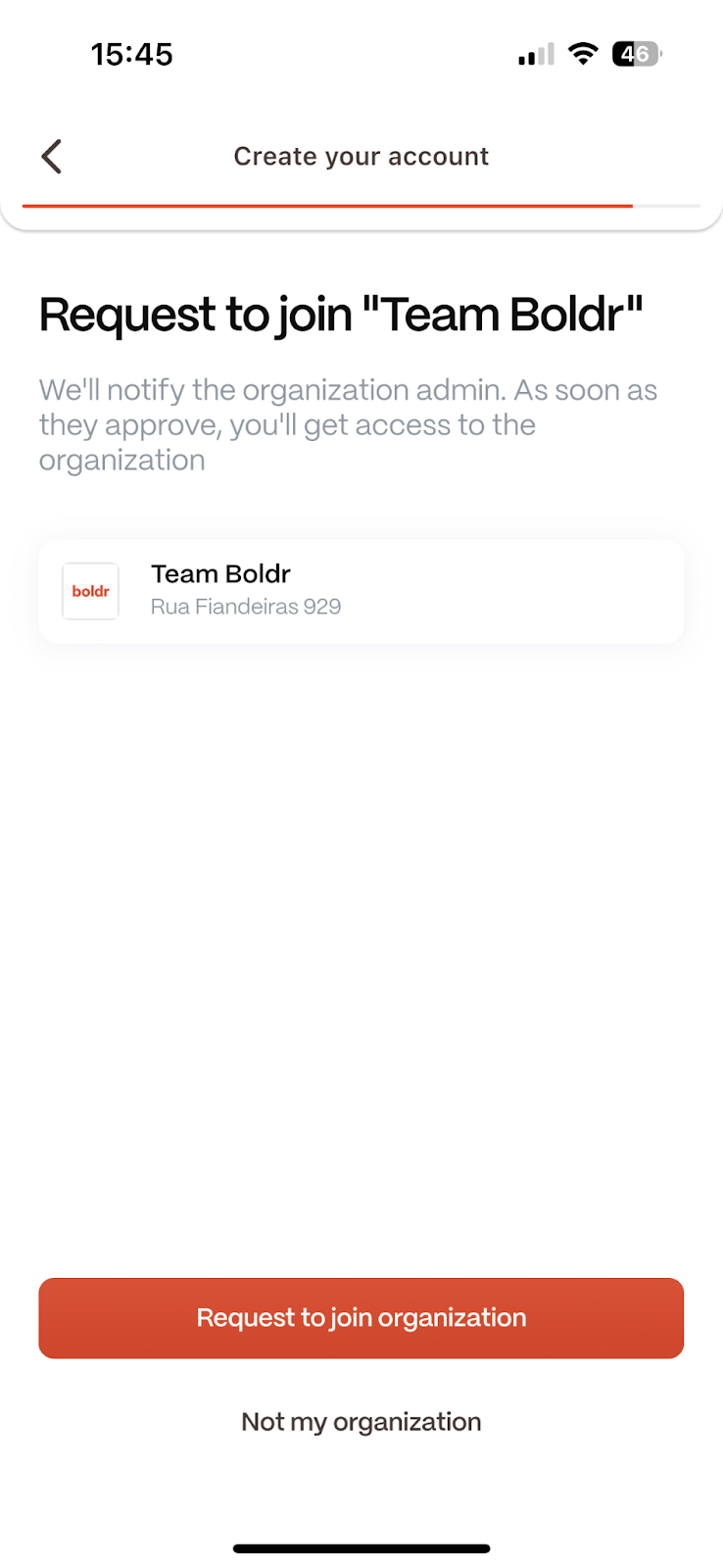
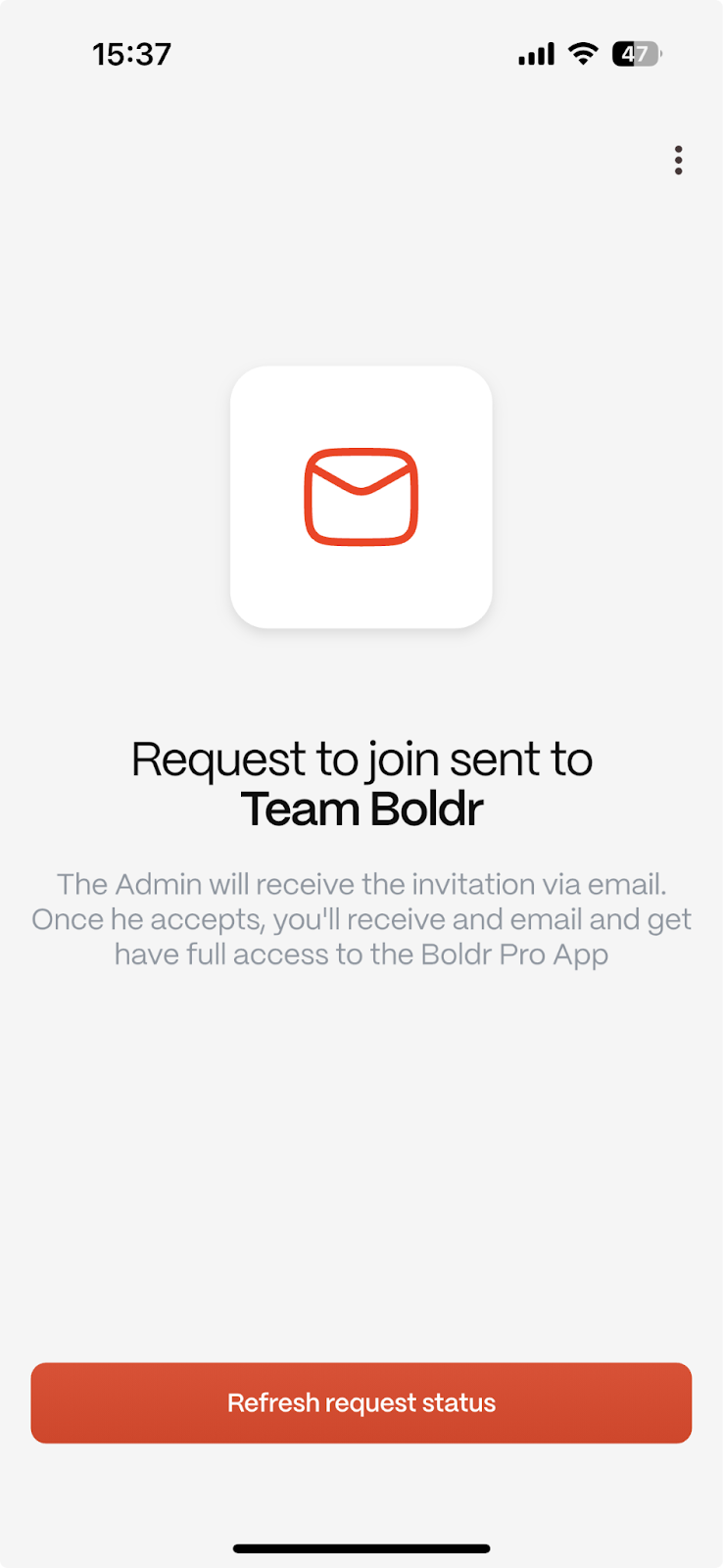
Scenario 3: Your email is recognized, but you need to request access. (Install team)
What you'll see: A prompt to request access.
What to do: Tap Request to join the organization.
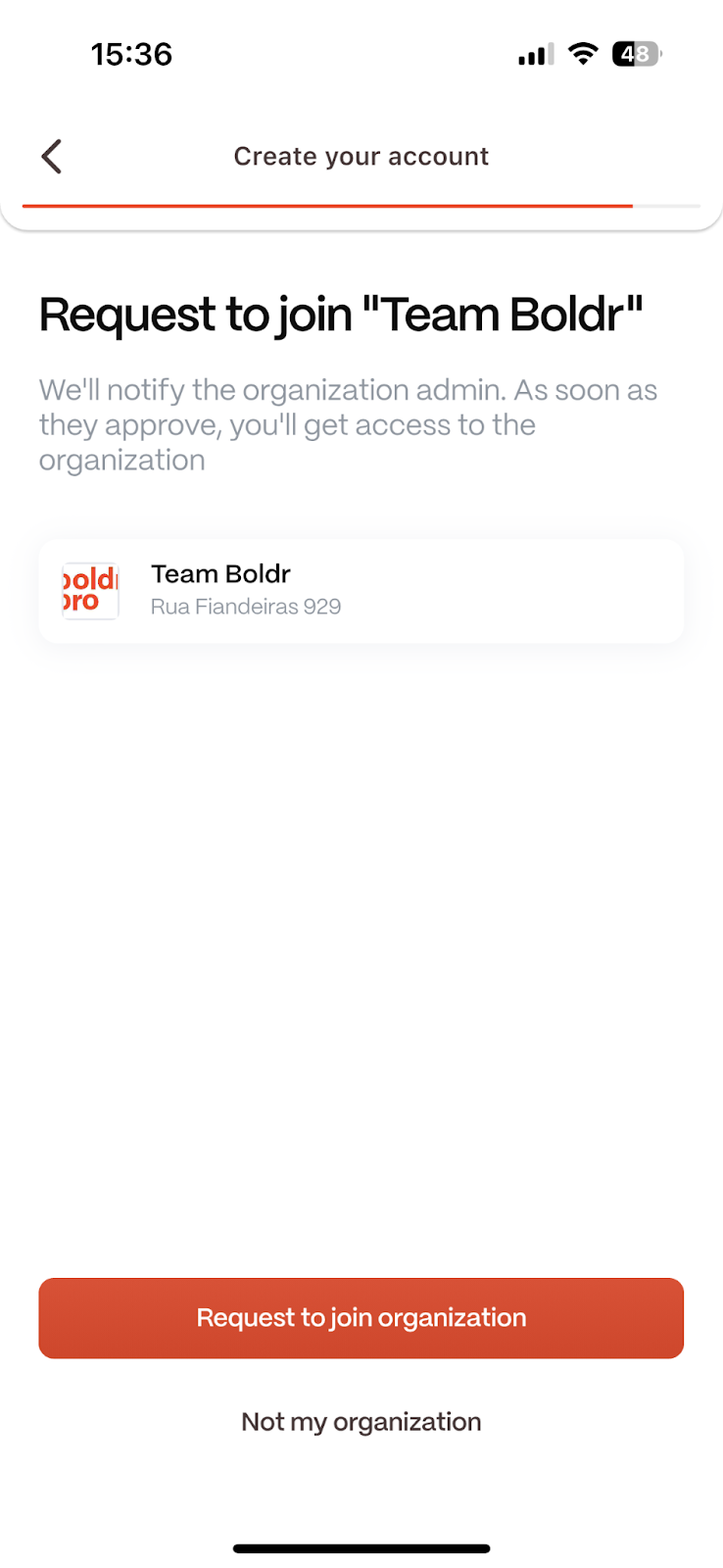
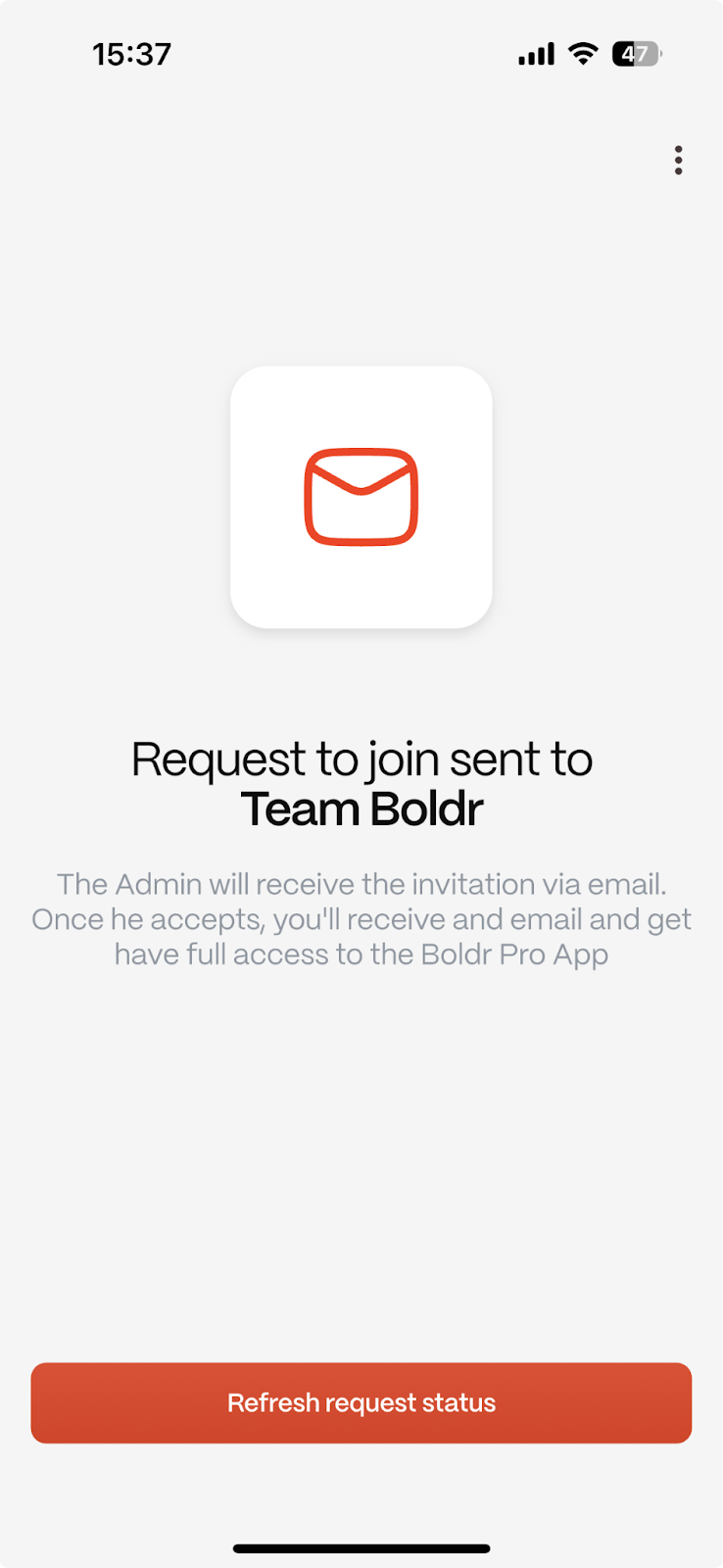
Scenario 4: Your email is recognized, but the organization is unclaimed.
What you'll see: An option to claim the organization.
What to do: Follow the on-screen steps to either claim it yourself or refer a manager (Owner of the Business) to do so.

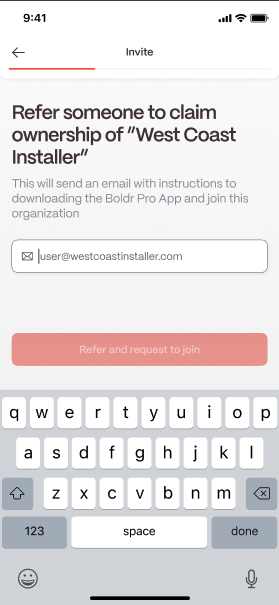
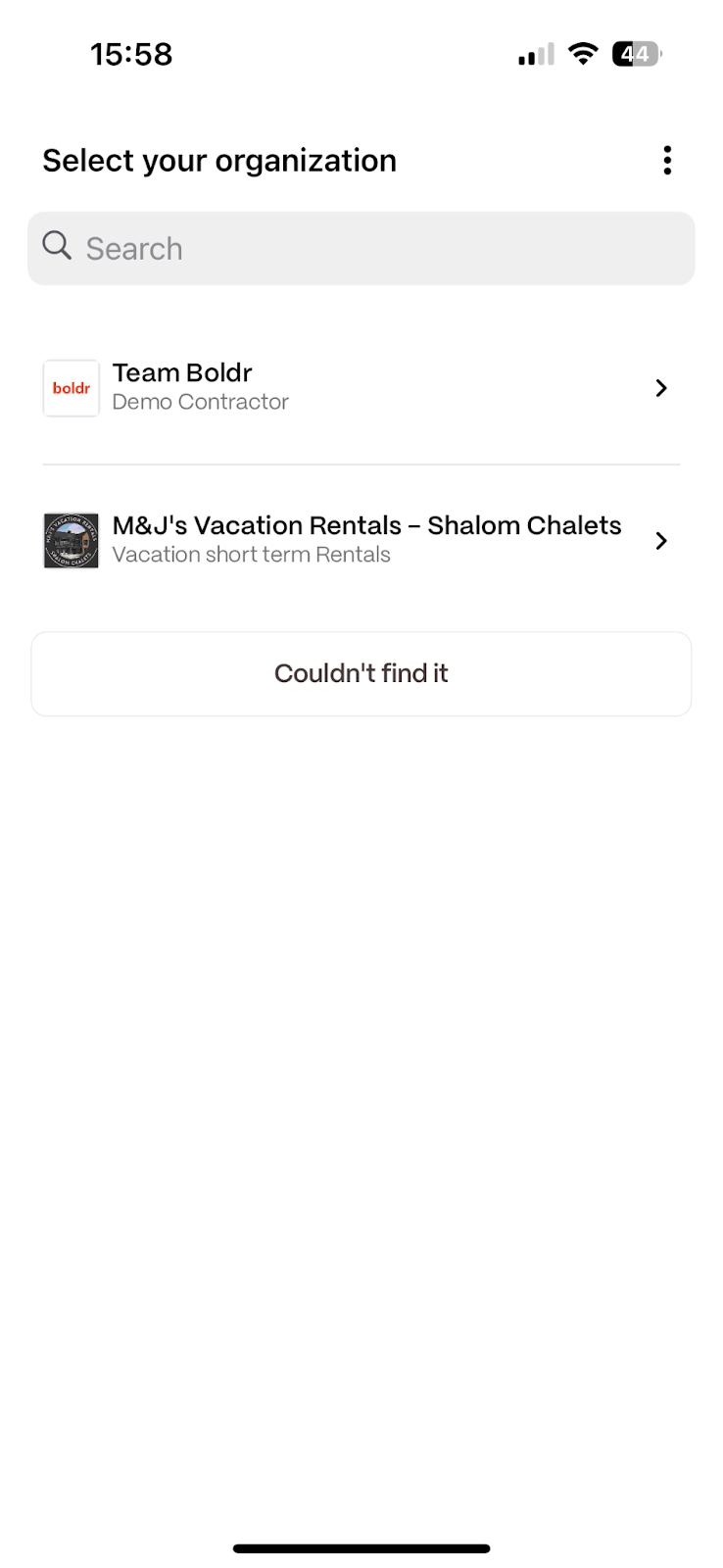
Scenario 5: Your email is not recognized, but your organization is listed. (Install Team)
What you'll see: A list of all Boldr Pro partner organizations.
What to do: Find your organization in the list, select it, and tap to request access.
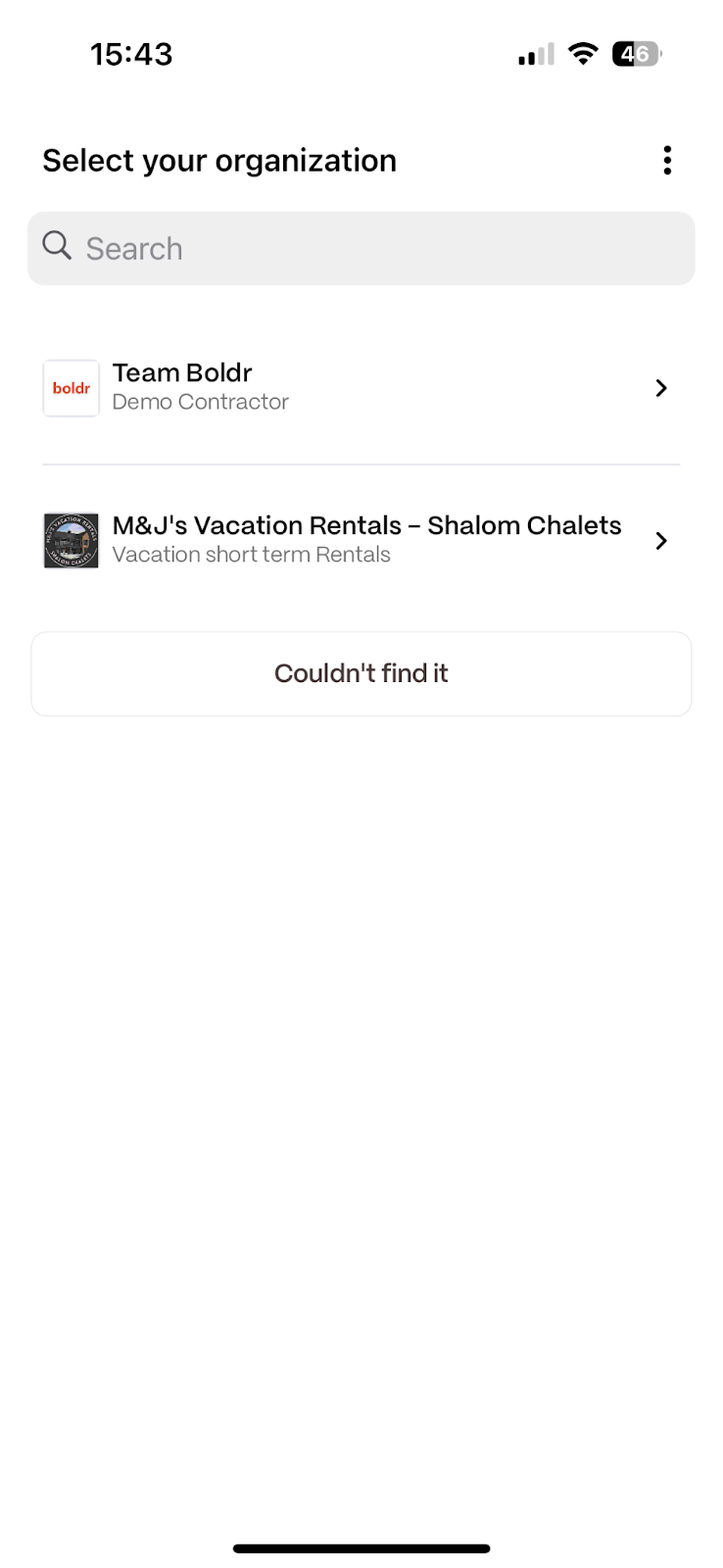
Scenario 6: Your organization is not listed.
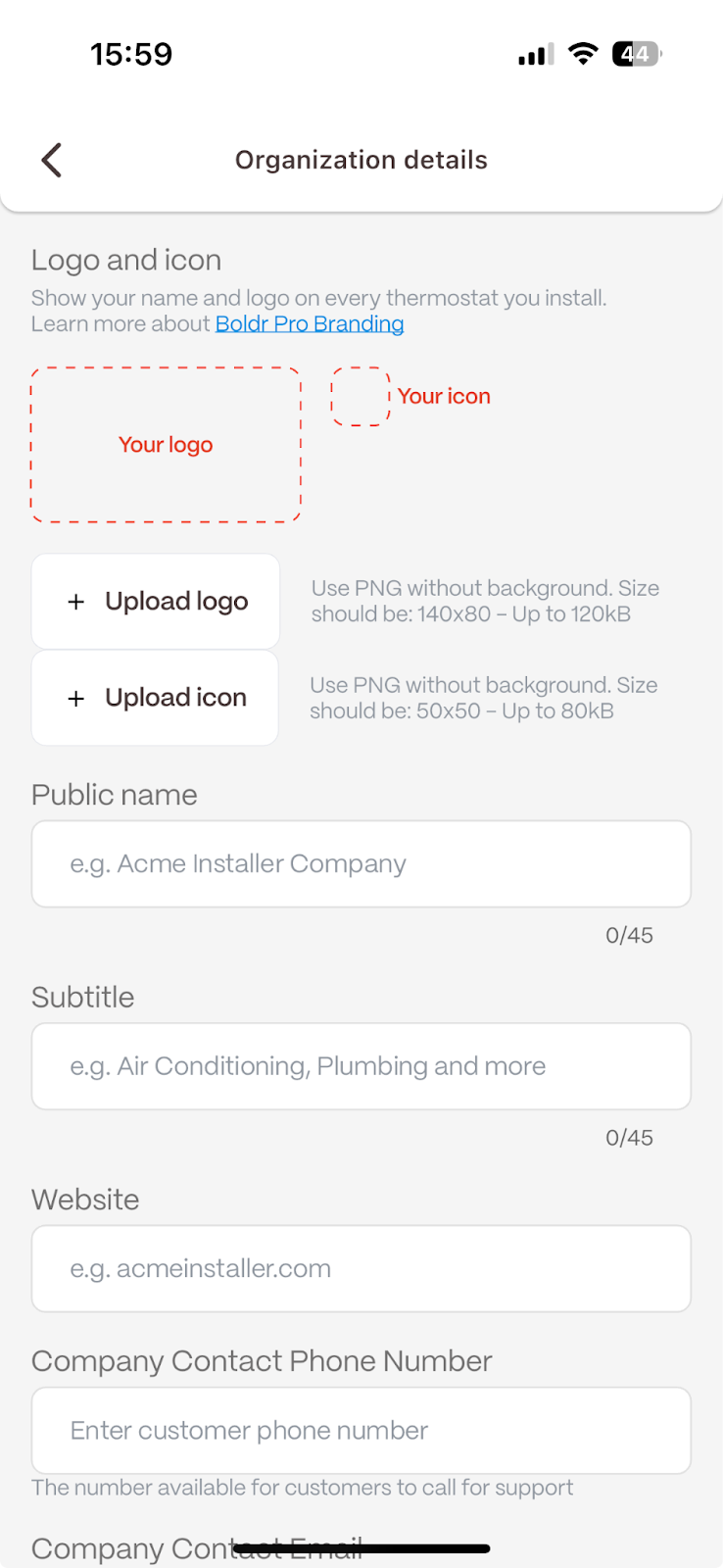
What you'll see: A search list with no results for your company.
What to do: Tap the "Couldn't find" button and fill out the form to create your organization.
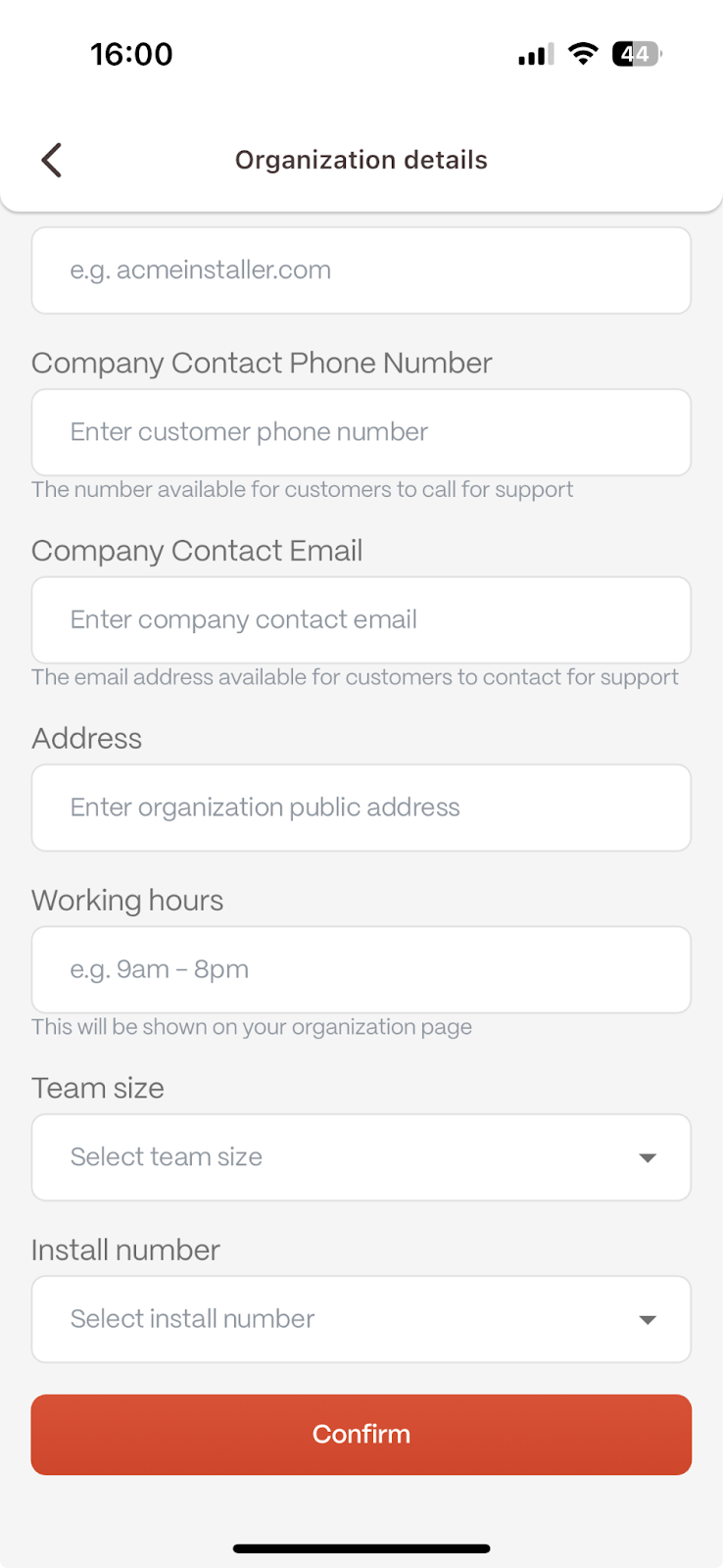
Once you are linked to an organization, you will see its dashboard, where you can view previous installations or start a new one.
Part 2: Creating a New Installation
1. Start a New Install
On the main screen, tap New Install. If this is your first time, tap Create First Install.
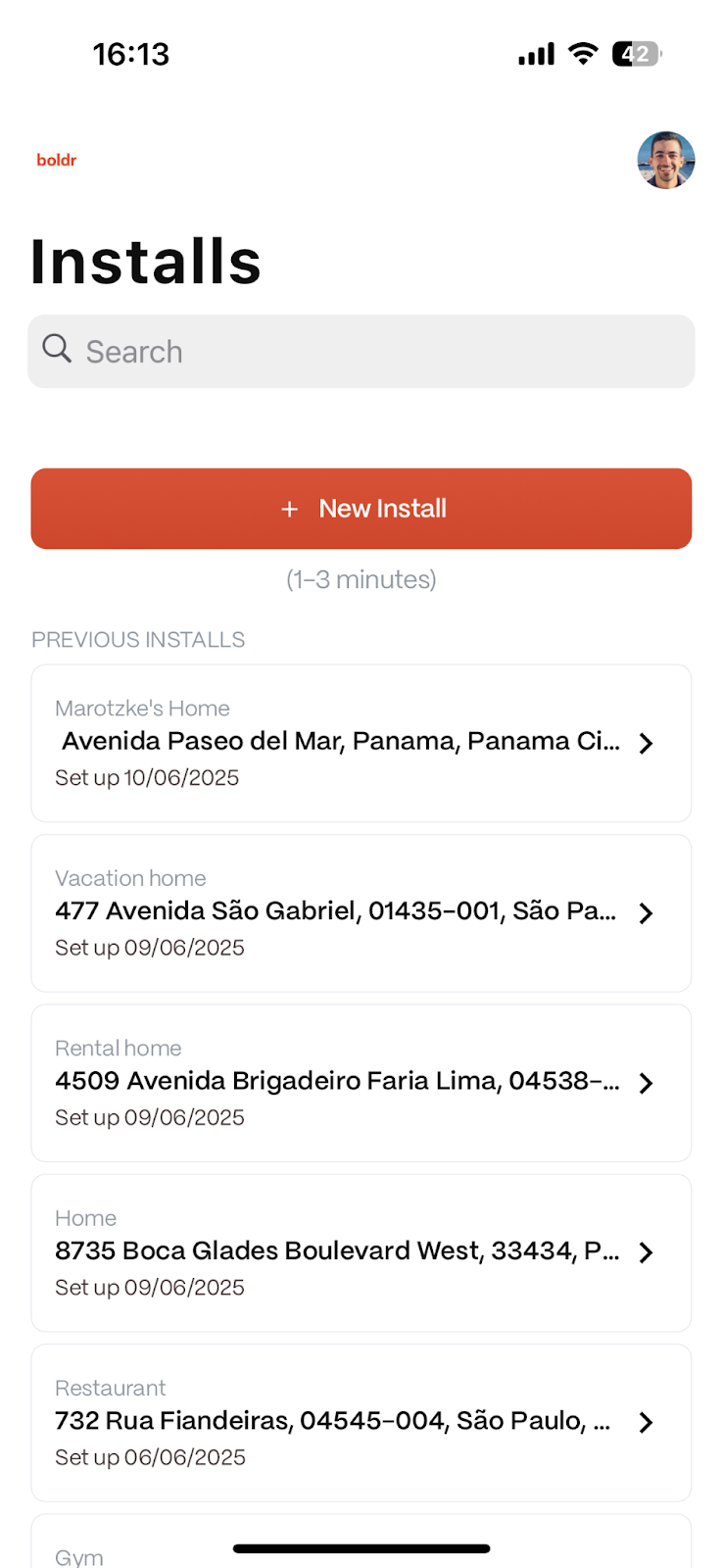
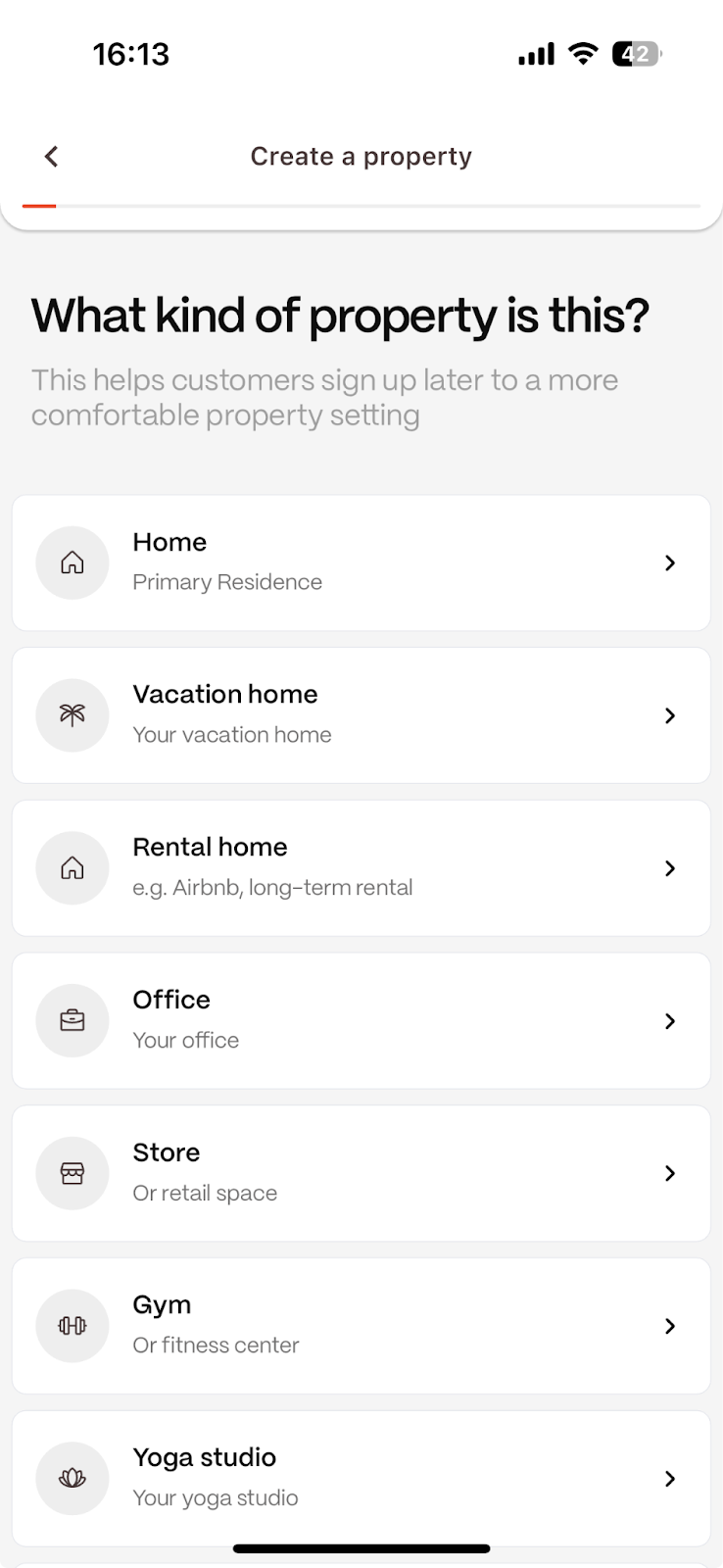
2. Set the Property Location
Select the Property Type (e.g., Home, Office).
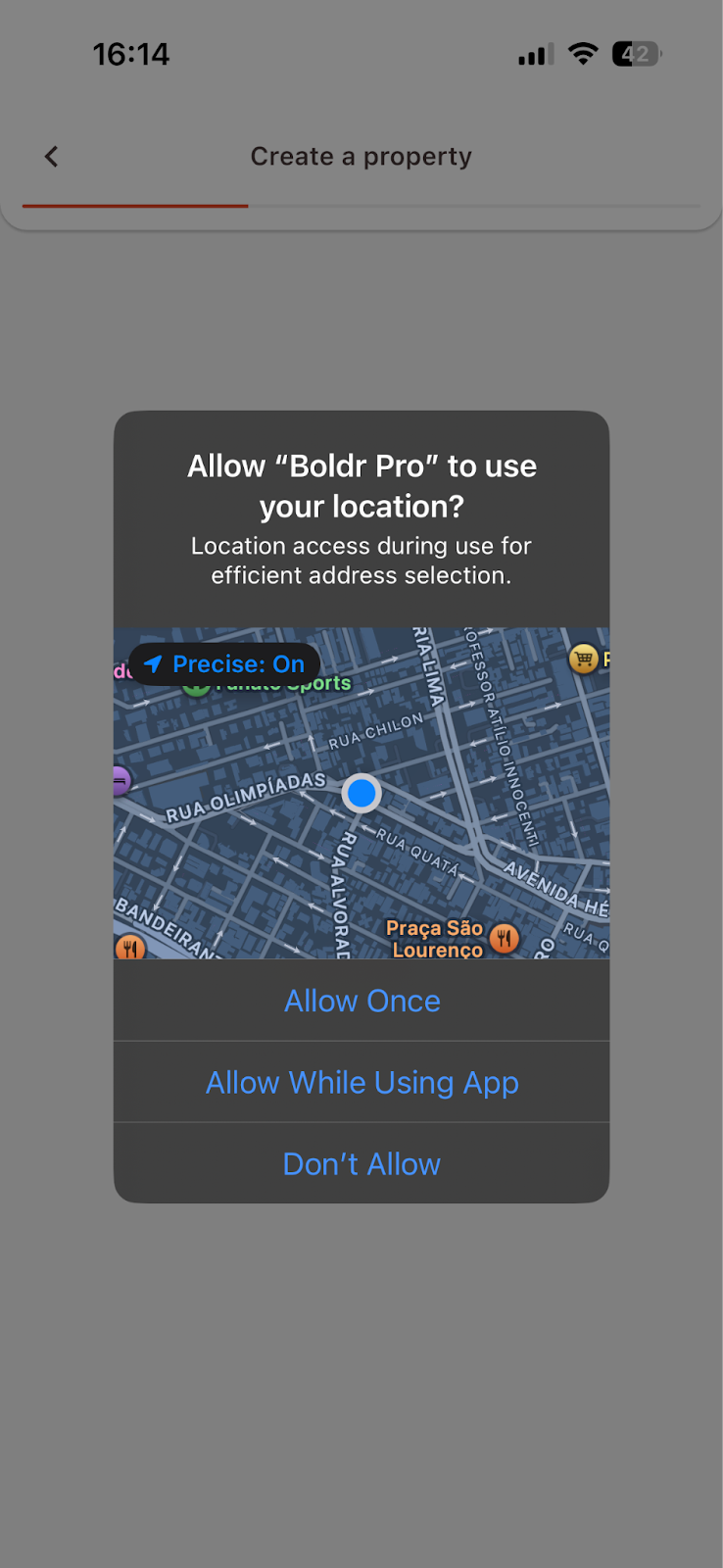
The app will ask for location access. Choose Allow While Using the App.
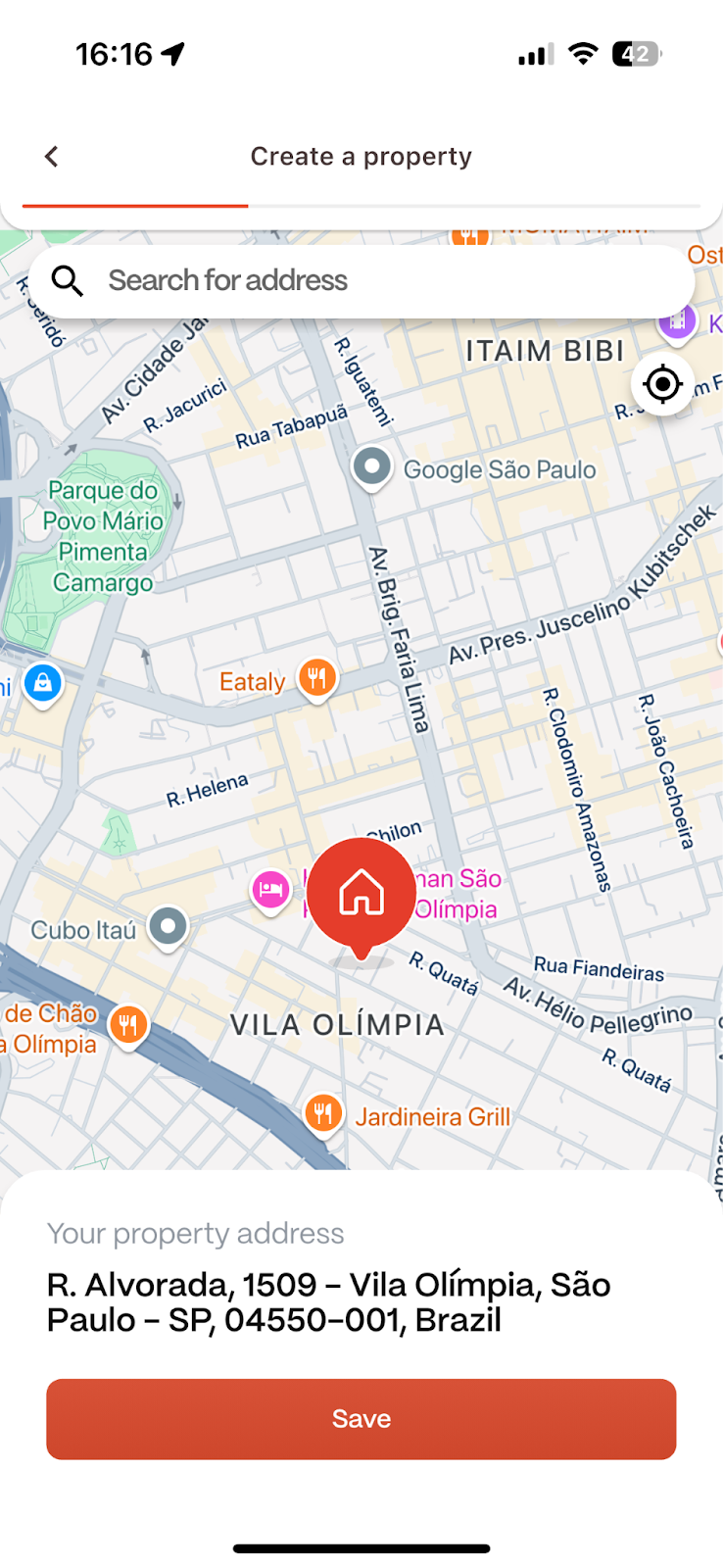
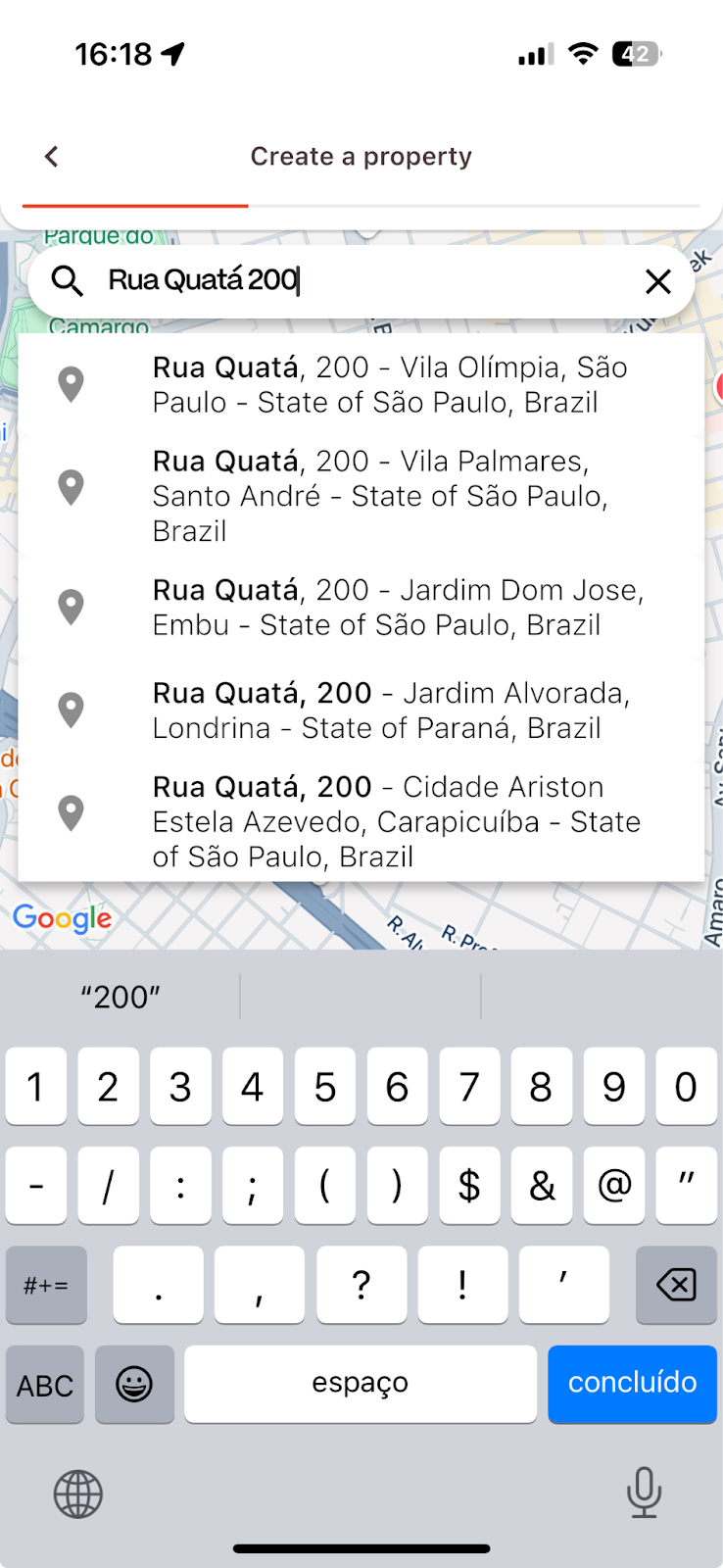
Use the map to find the property or enter the address manually.
When the pin is in the correct location, tap Save.
3. Name the Property
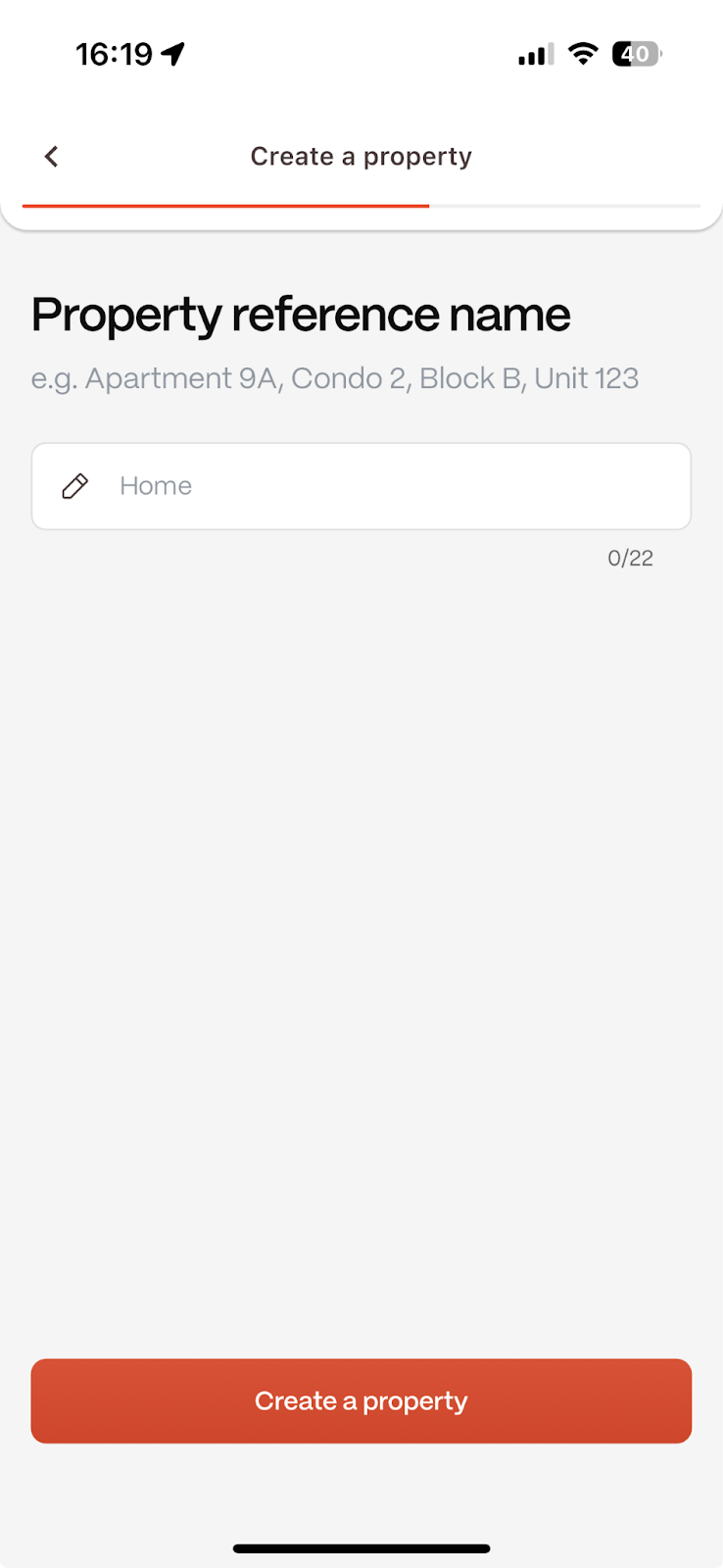
You can assign a custom nickname to the property (e.g., "123 Main St - Unit 2B") to easily identify it later. Tap Save.
4. Proceed With the Pairing
Follow Part 3 to pair your Boldr Controller.
Part 3: Pairing a Boldr Controller
Follow these steps to connect a Boldr Controller to the property you just created.
1. Add the Controller and Grant Permissions
On the property screen, tap Add Boldr Controller.
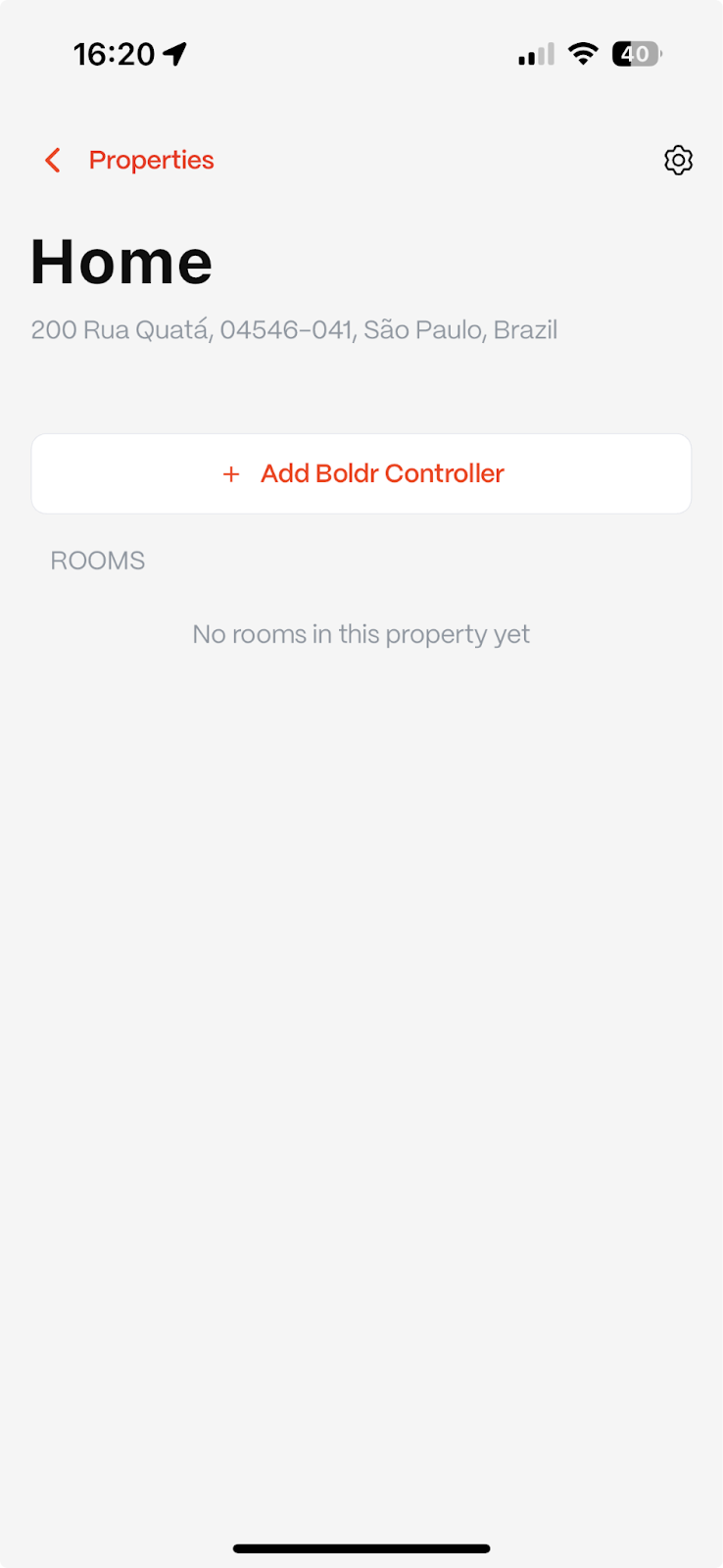
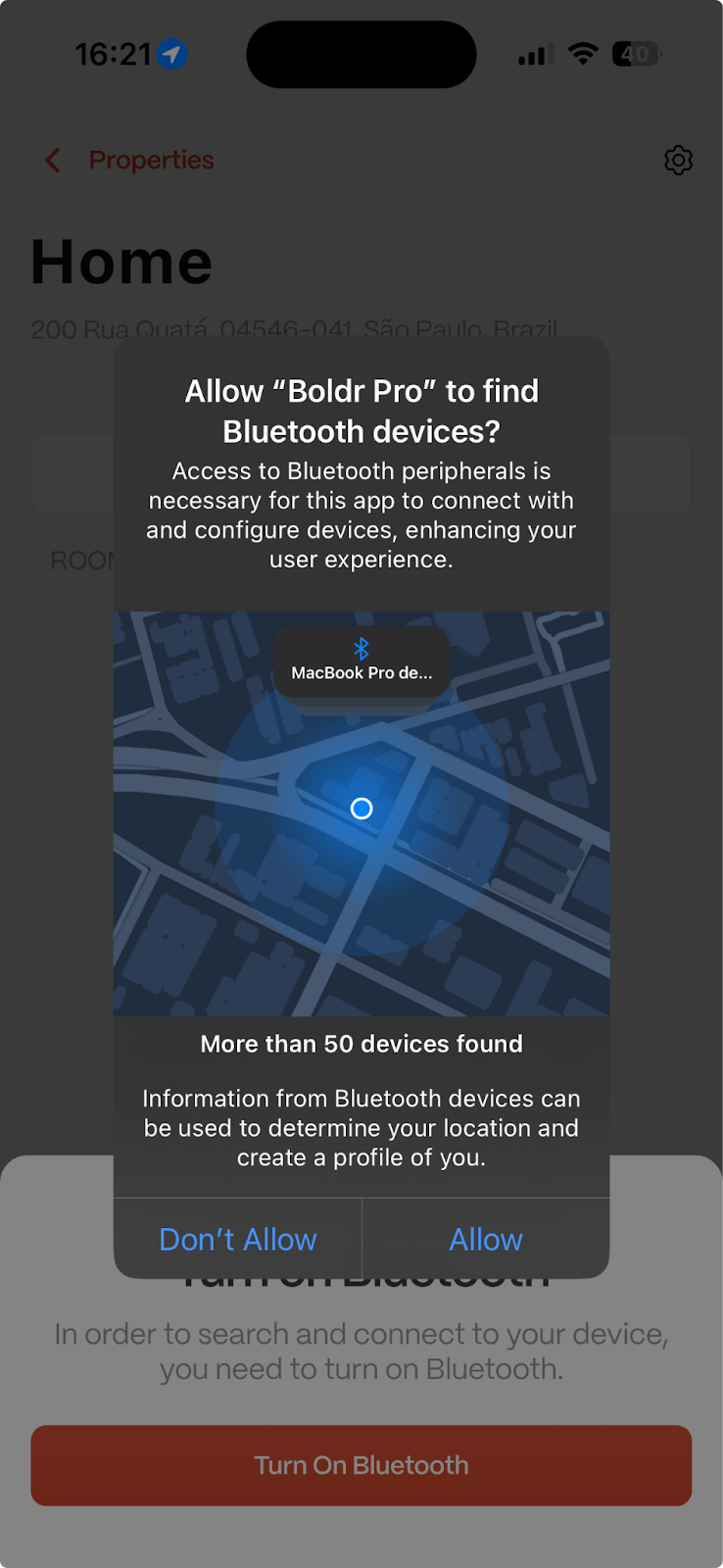
A prompt will ask for Bluetooth access. Tap Allow. (You will only be asked this once.)
2. Detect the Controller
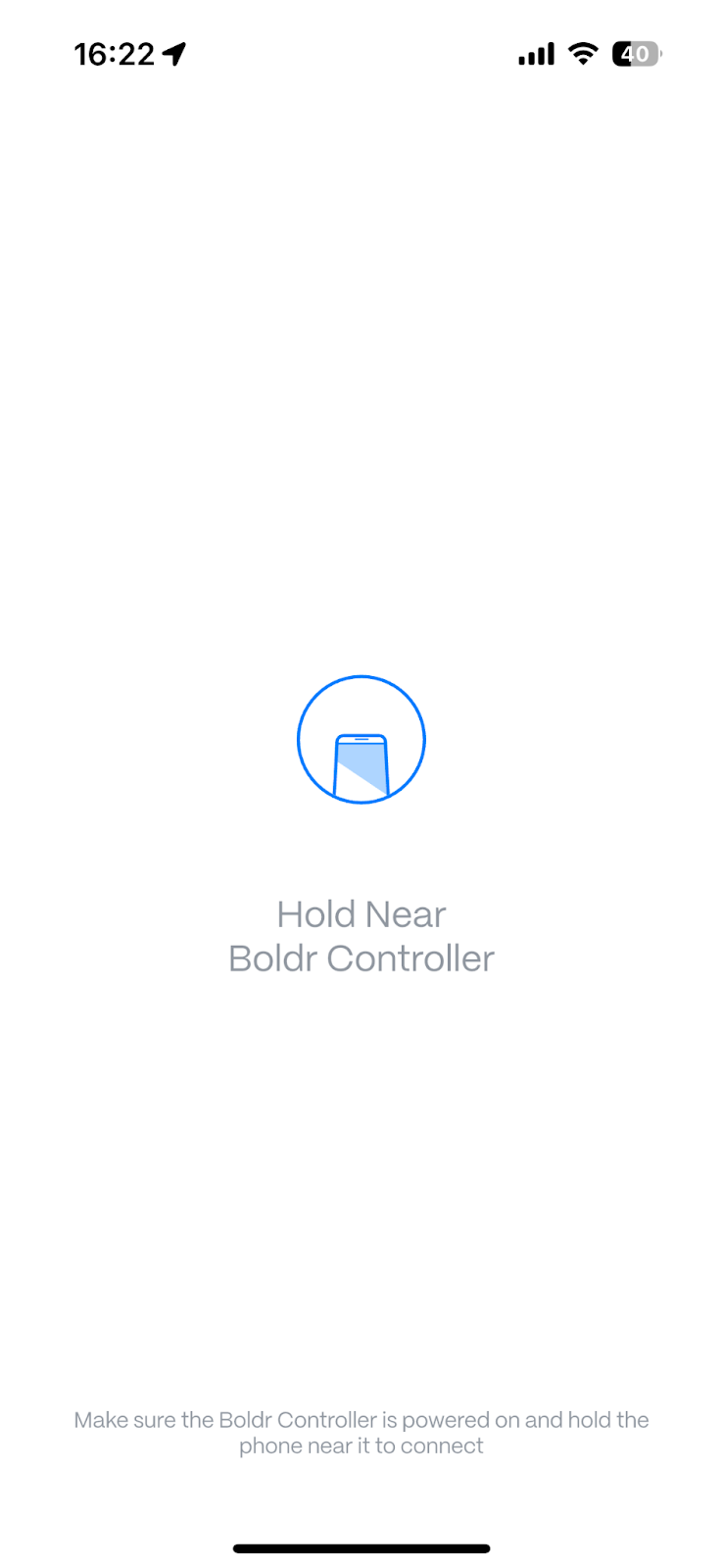
Hold your phone steady near the Boldr Controller.
Positioning is key: Place the back of your phone about 8 inches (20 cm) from the controller for best results.
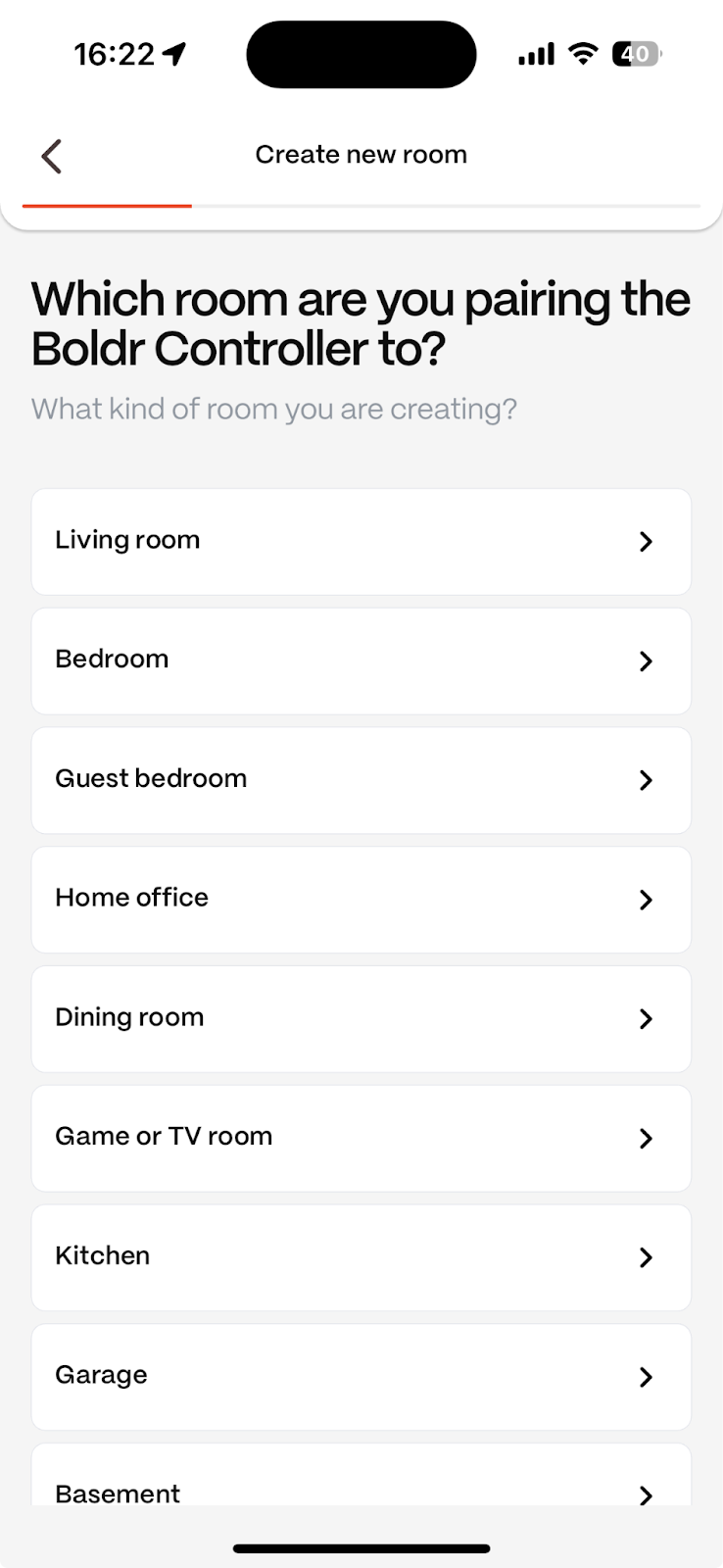
3. Create a Room
Select the room type where the controller is being installed (e.g., Bedroom, Living Room).
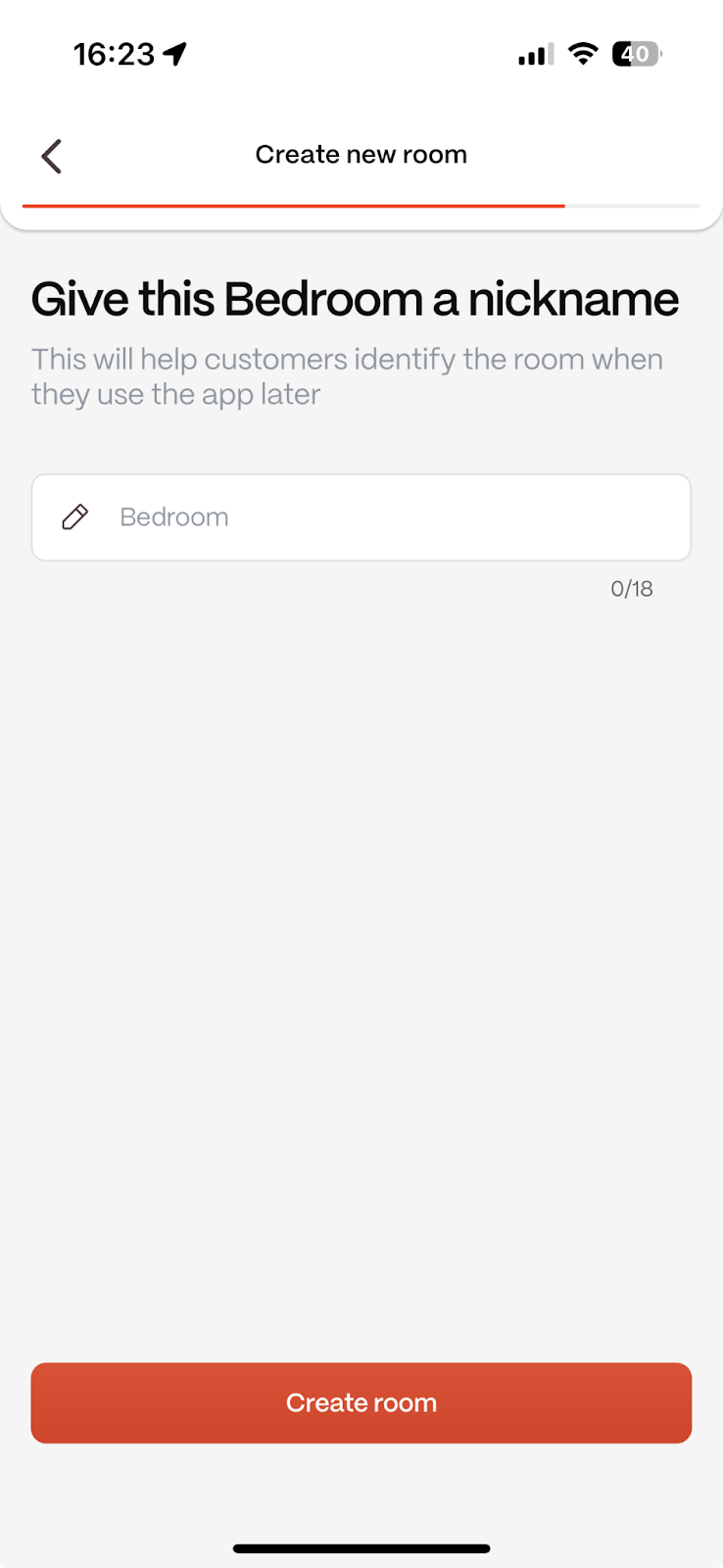
Give the room a nickname (e.g., "Master Bedroom") and tap Create Room.
4. Choose the A/C Unit
Now, you need to tell the app which A/C unit the controller will manage.
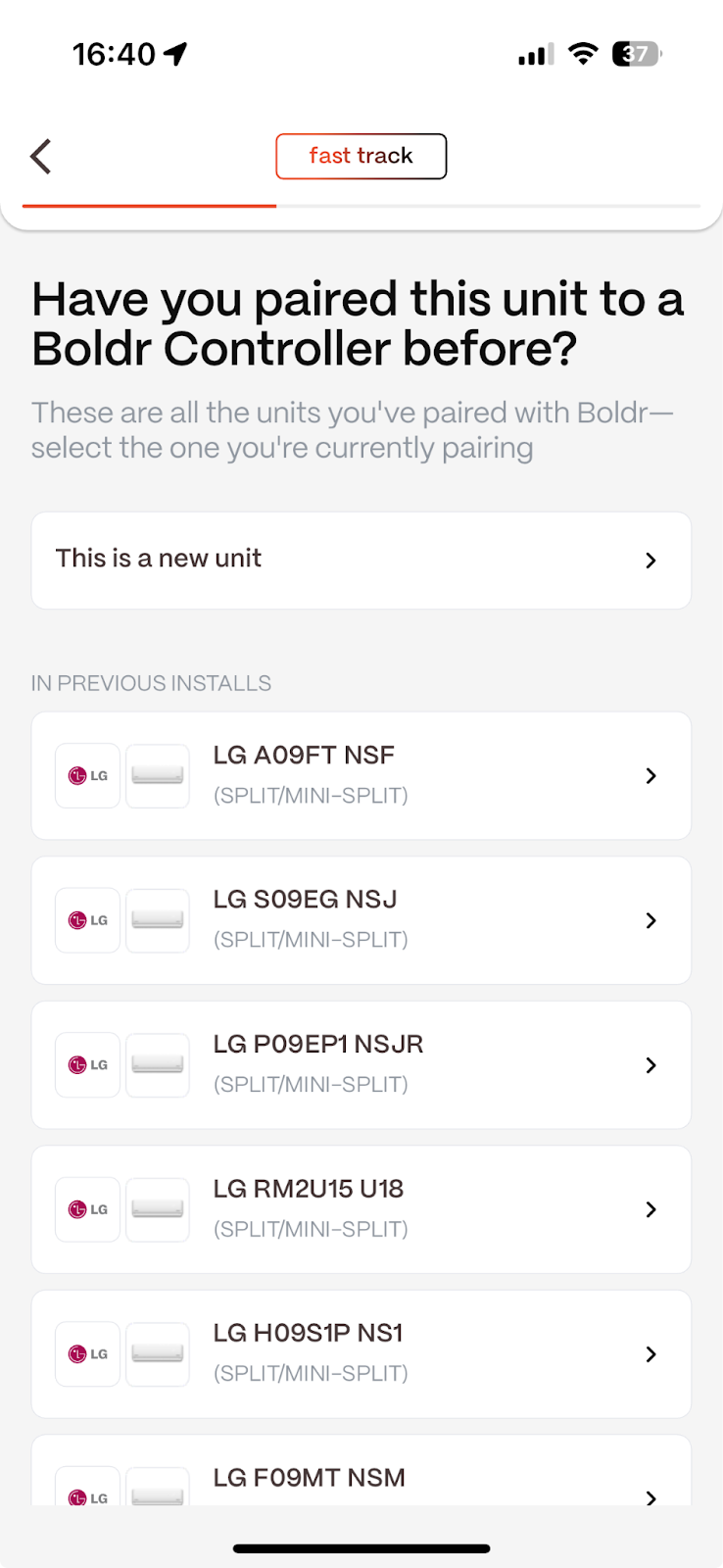
If this is a brand-new A/C unit: Select This is a new unit and proceed to Step 5.
If you have paired this exact A/C unit before: Select it from the list of previously configured units to skip the remote control testing.
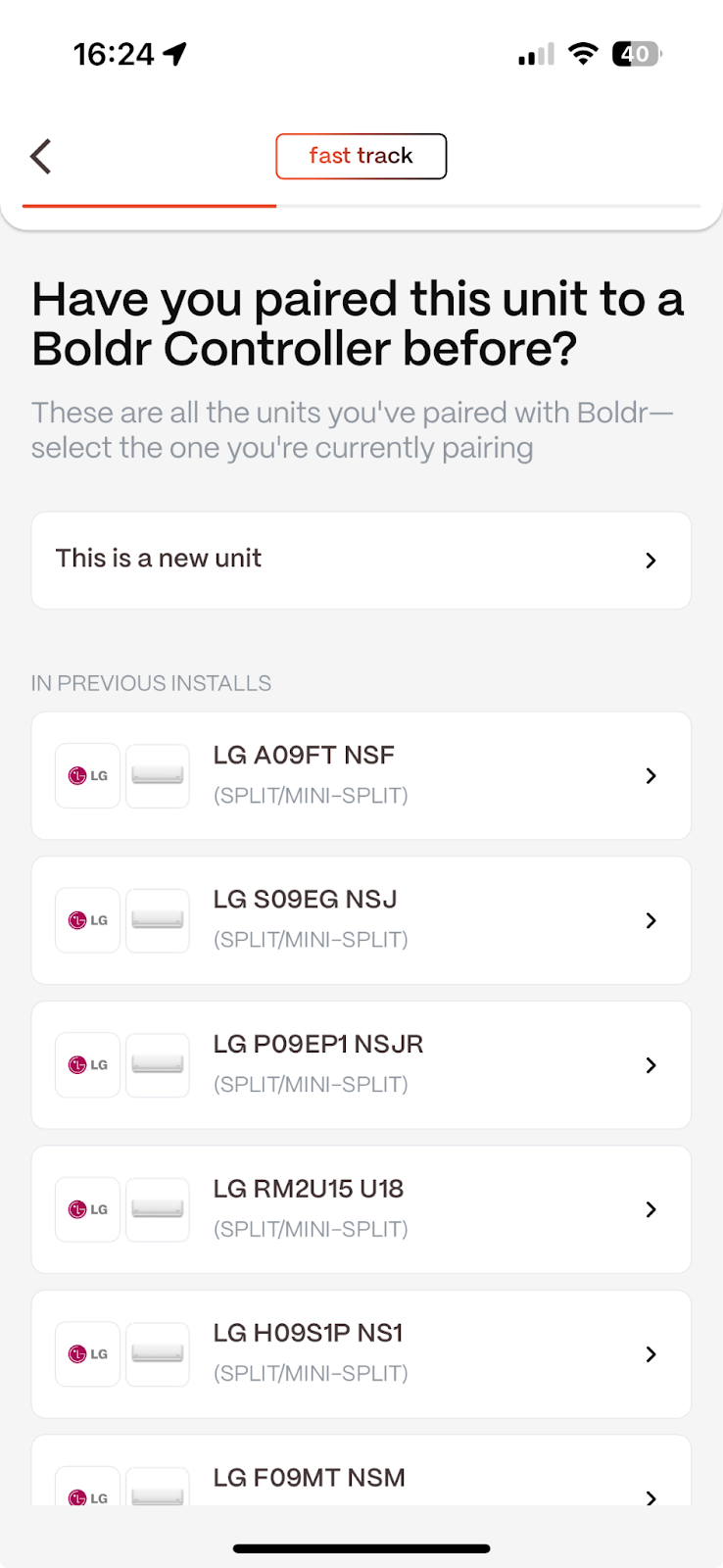
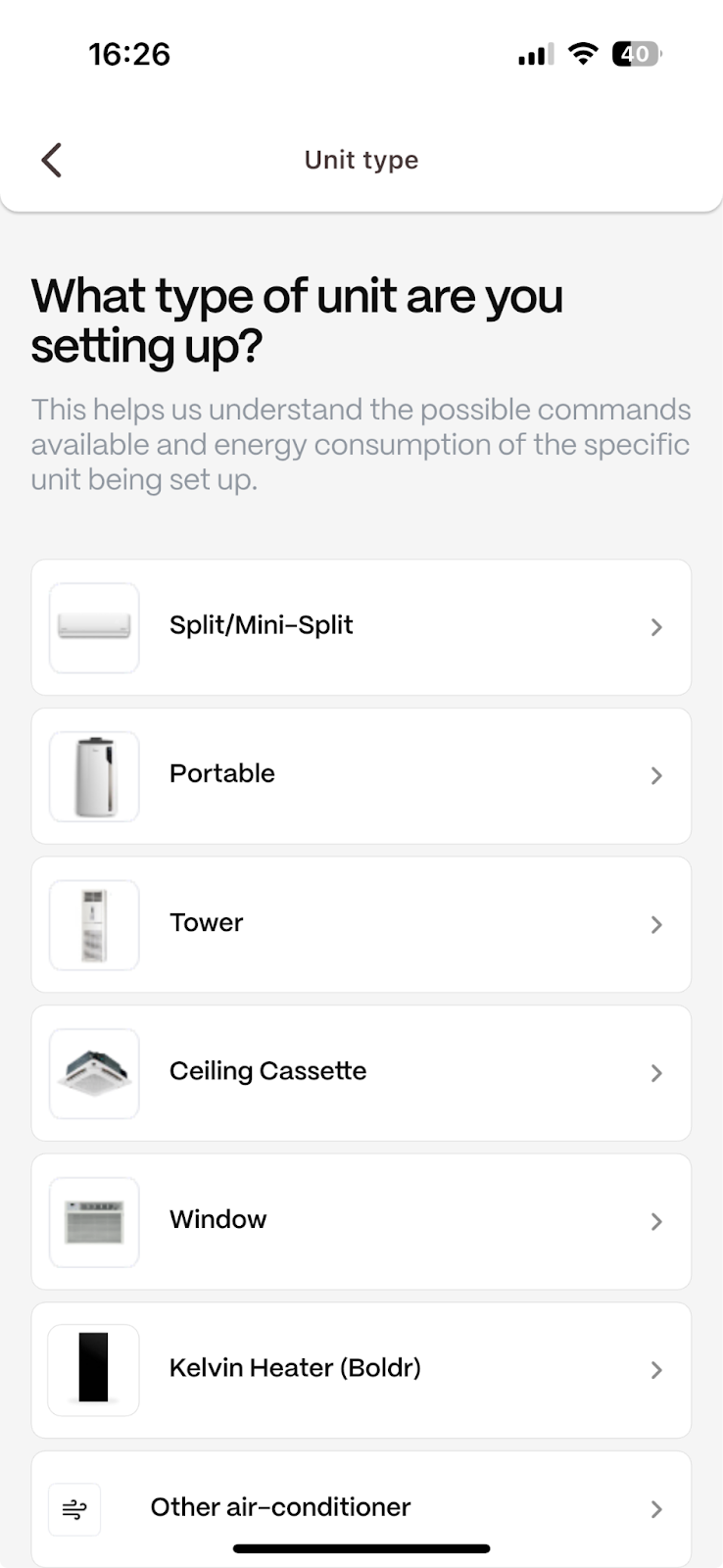
5. Configure a New A/C Unit
Select Unit Type: Choose the type of A/C (e.g., Split/Mini-Split).
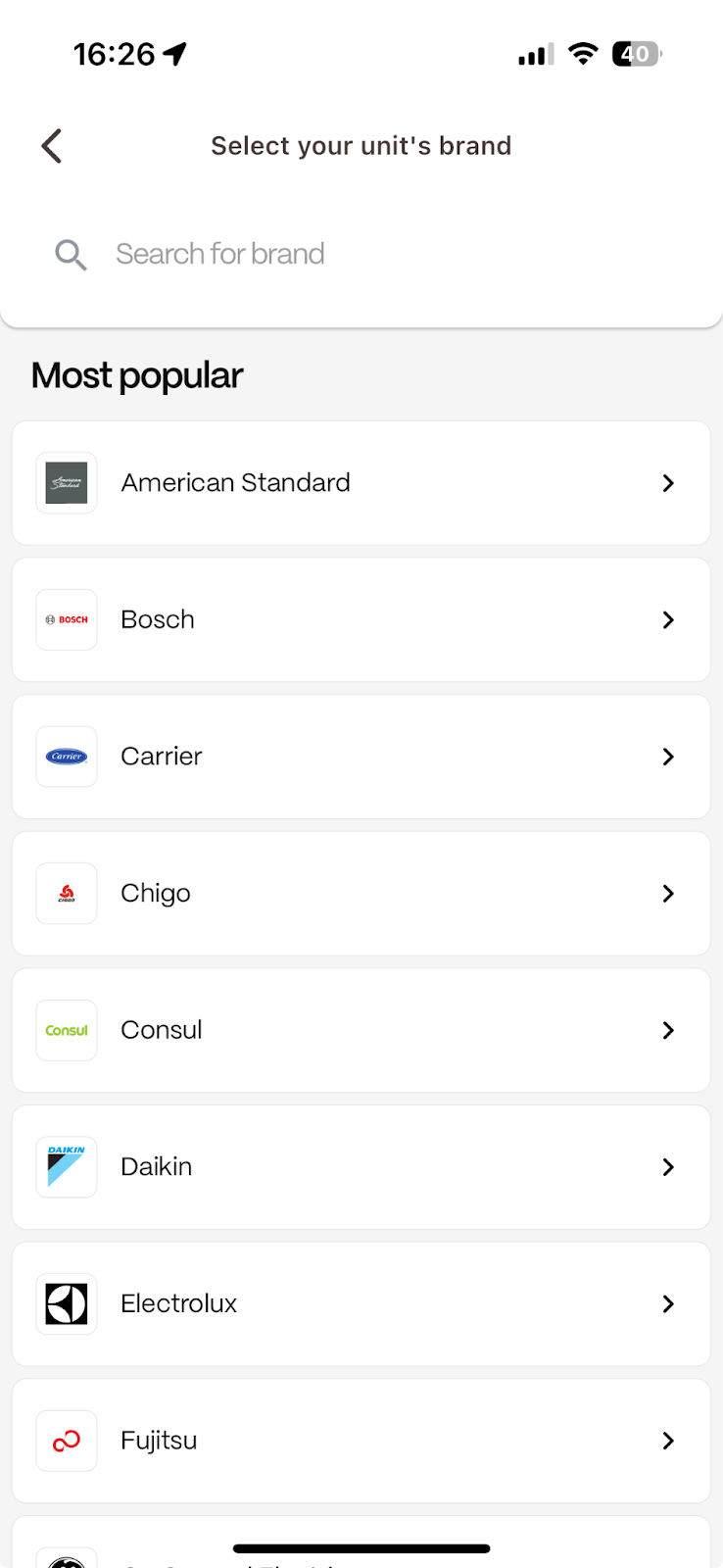
Select Brand: Find and tap the A/C unit's brand from the list.
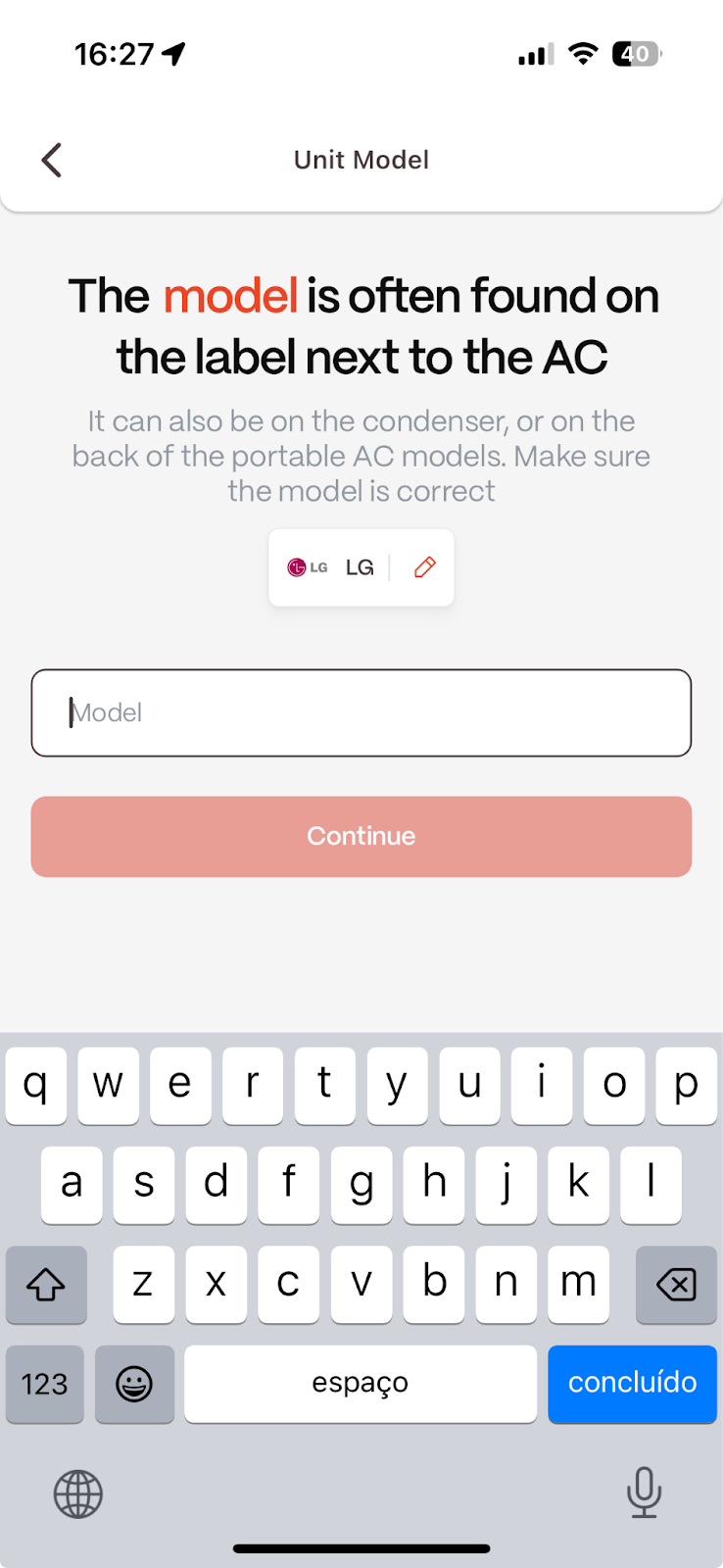
Enter Model: Type in the model number of the unit and tap Continue.
6. Pair the Remote Control
This is the most important step for ensuring the controller can communicate with the A/C.
Follow the on-screen instructions carefully.
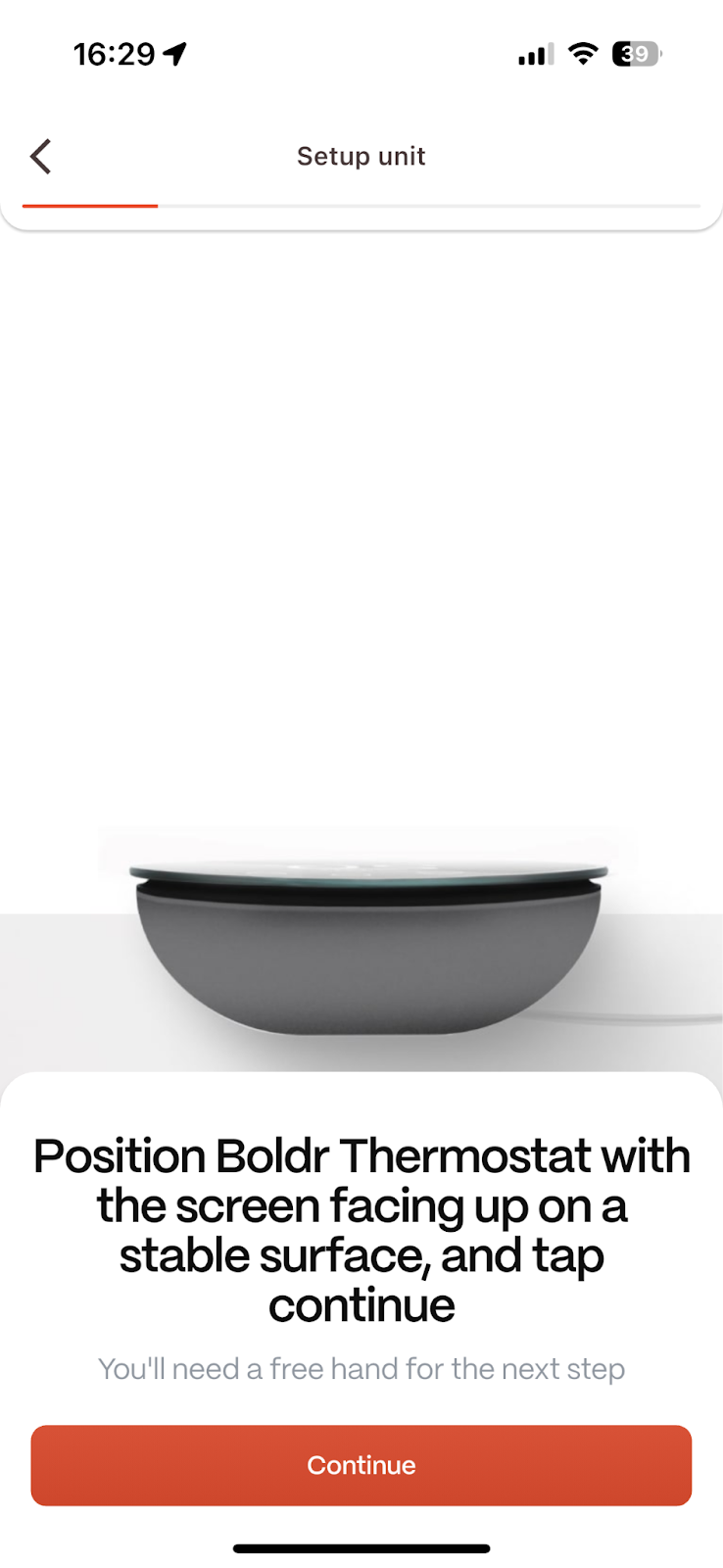
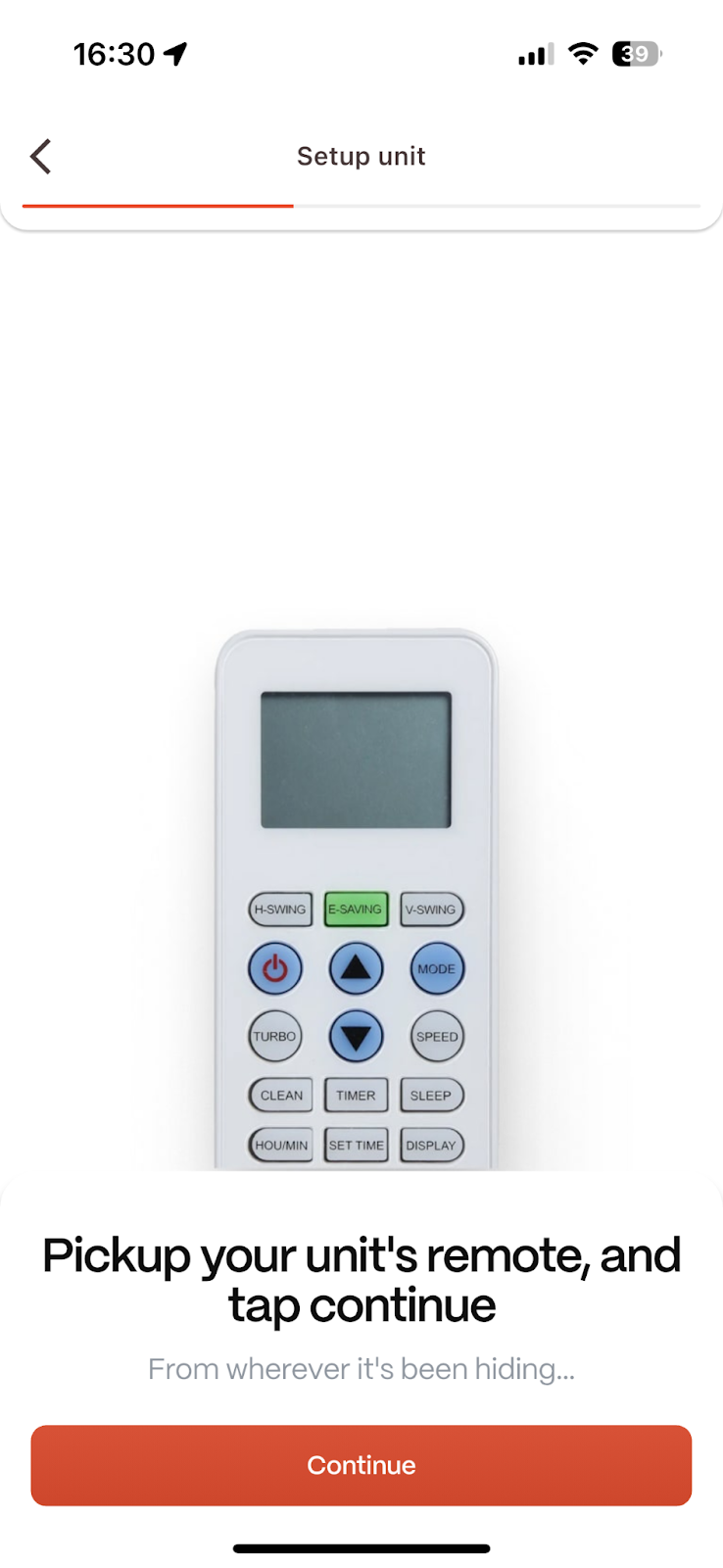
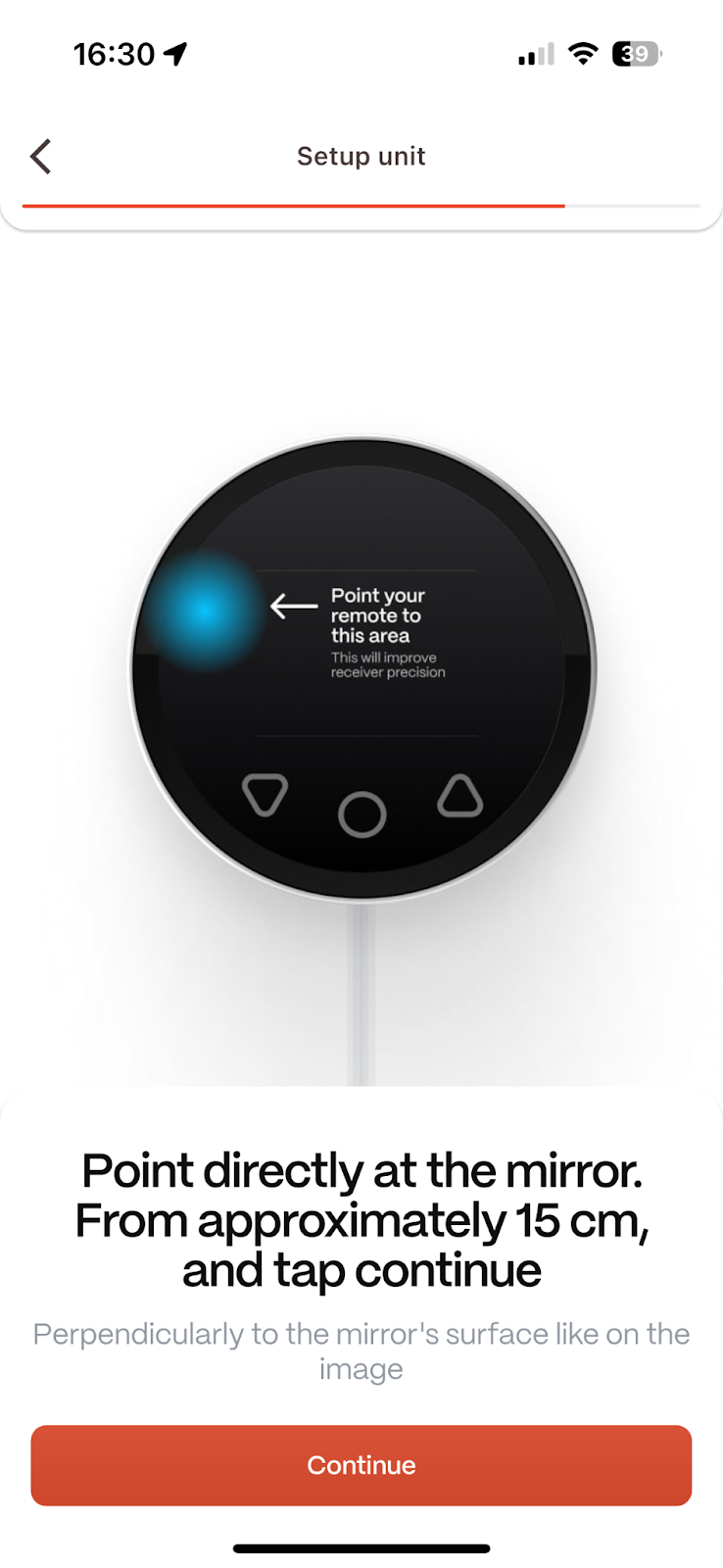
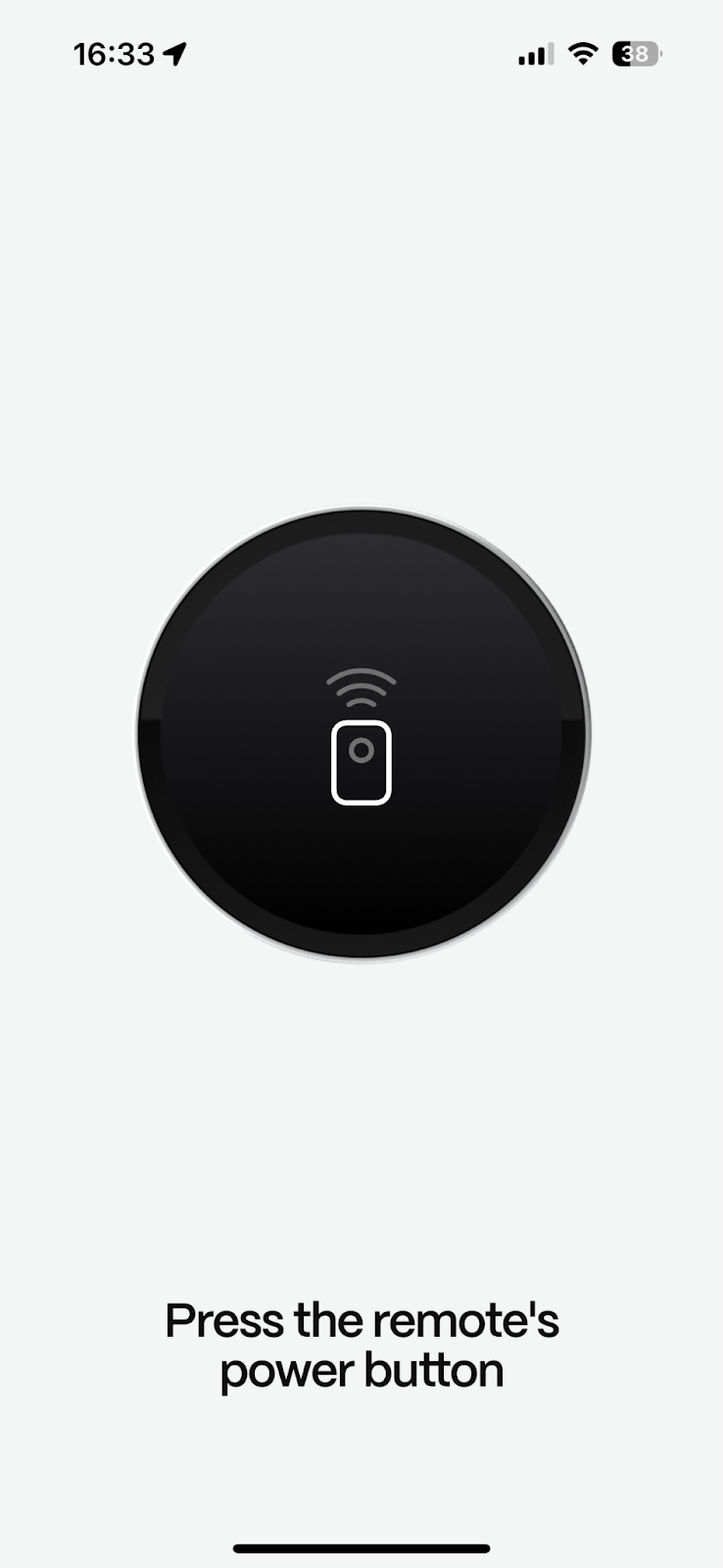
When prompted, point your A/C unit's original remote control directly at the Boldr Controller and press the Power button firmly on the remote. This allows the controller to capture the remote's unique IR (infrared) signal.
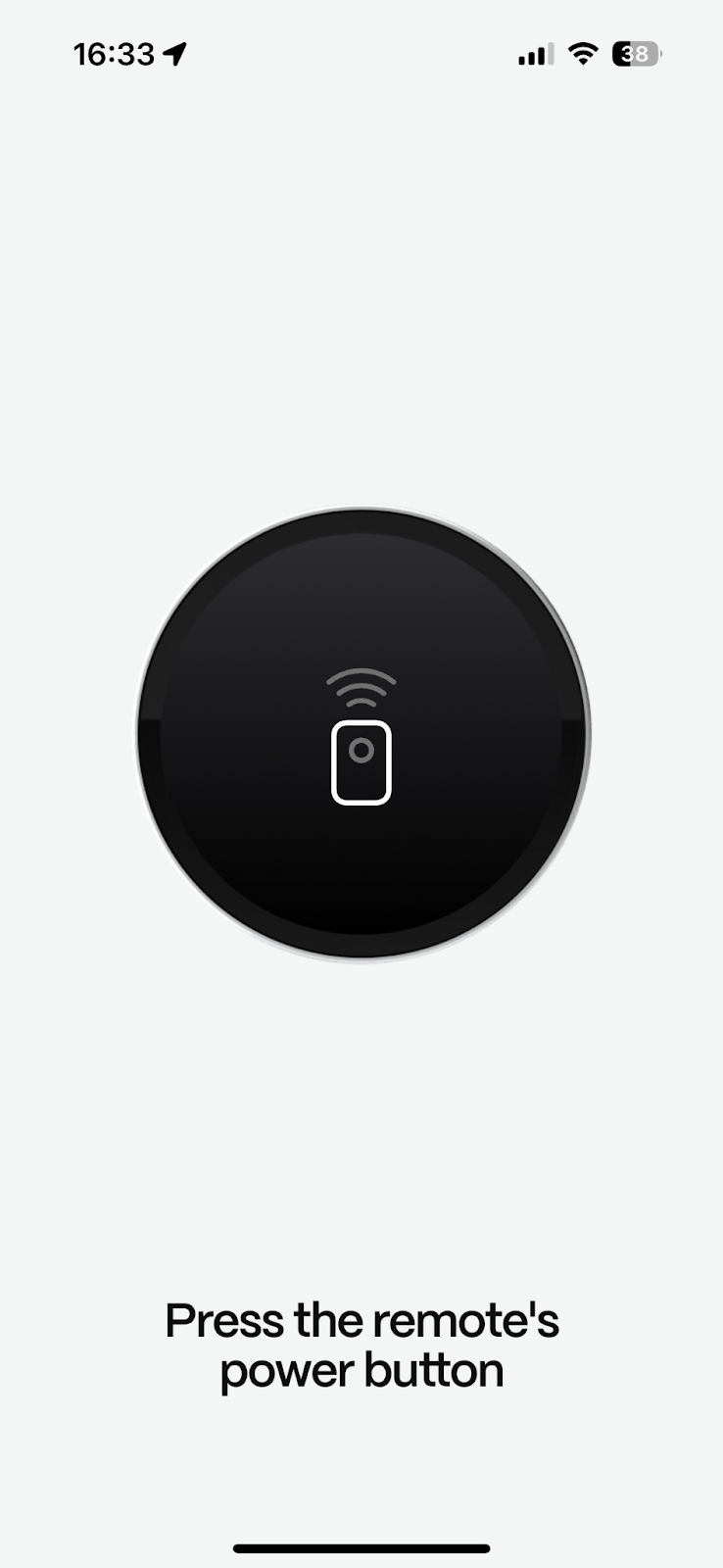
7. Test the Command Set
Based on the captured signal, the app will suggest compatible command sets.
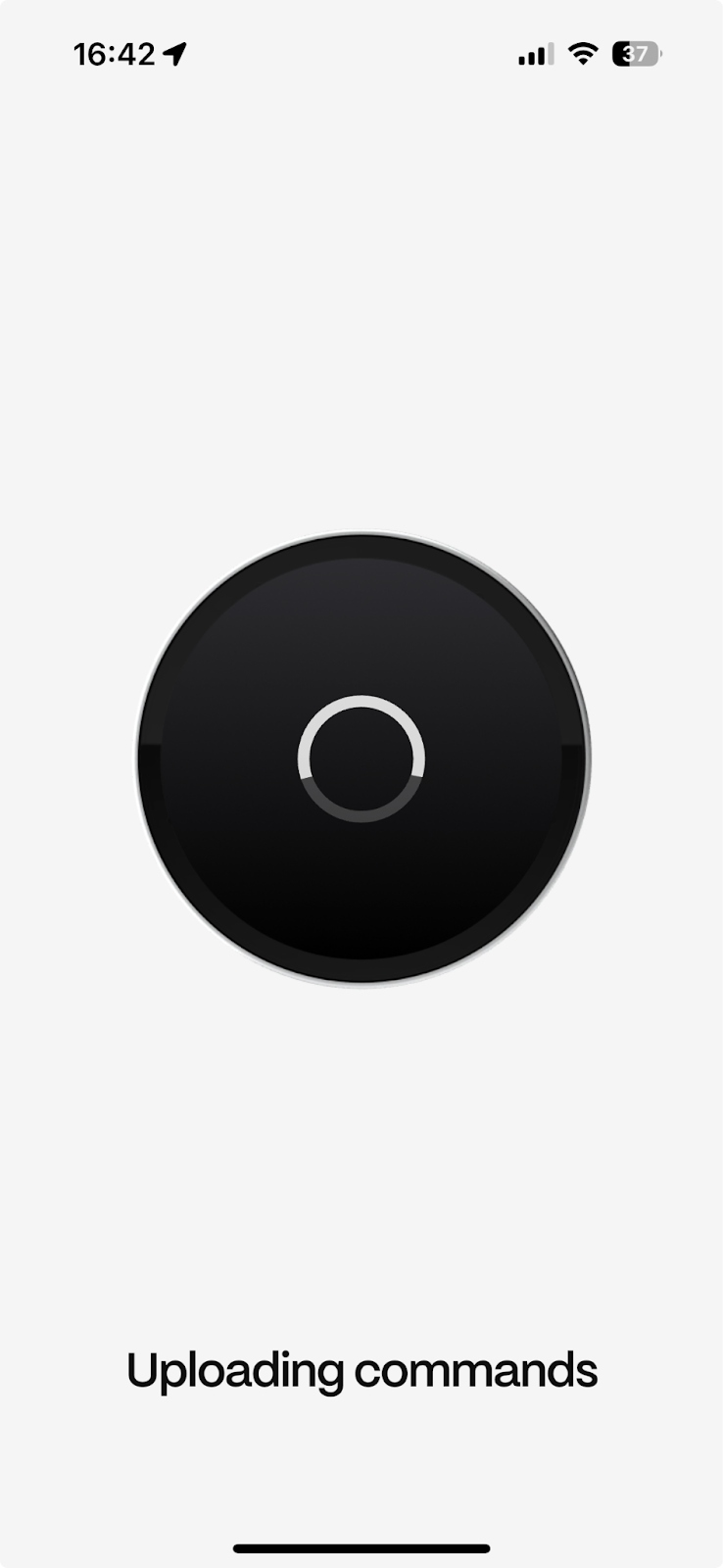
Follow the guided tests (e.g., "Did your unit turn ON?") to confirm the commands work correctly.
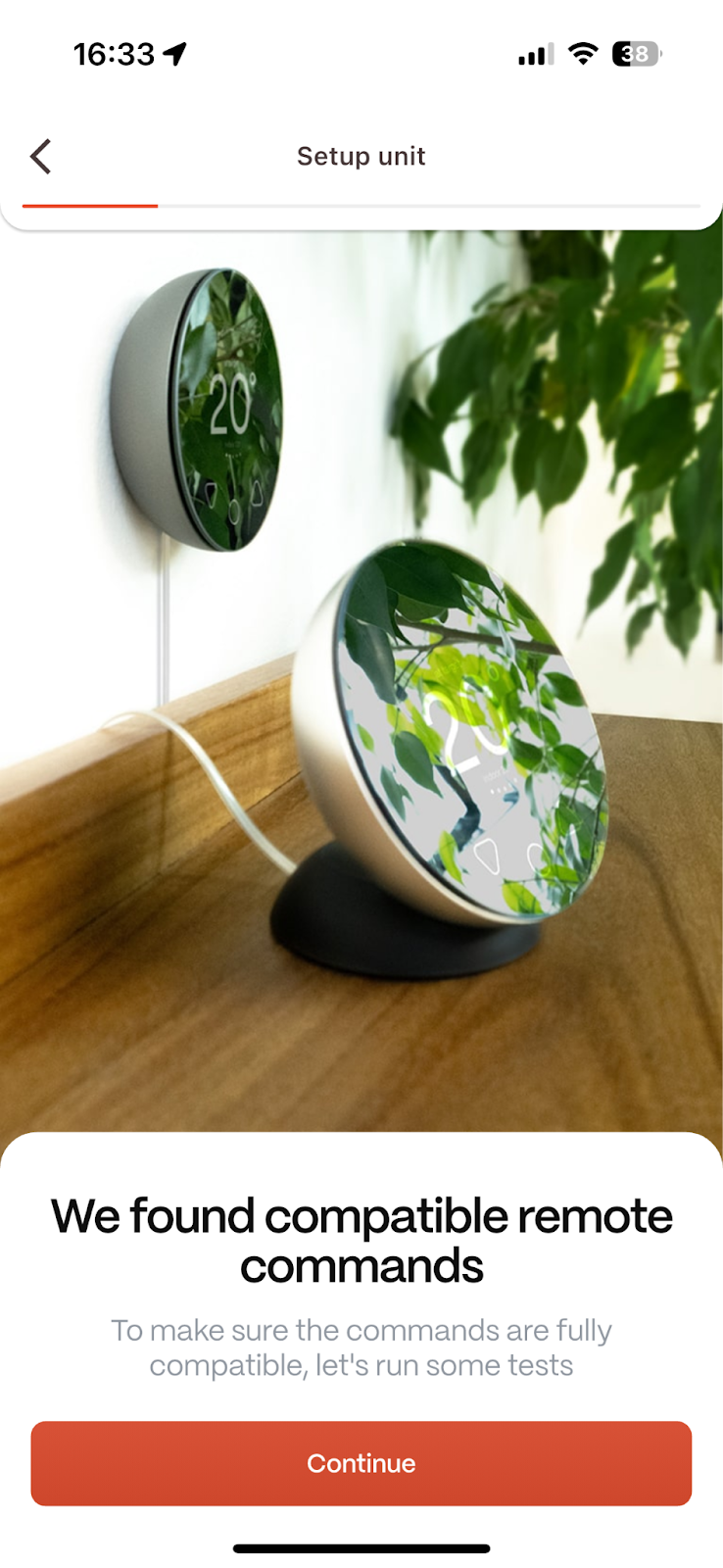
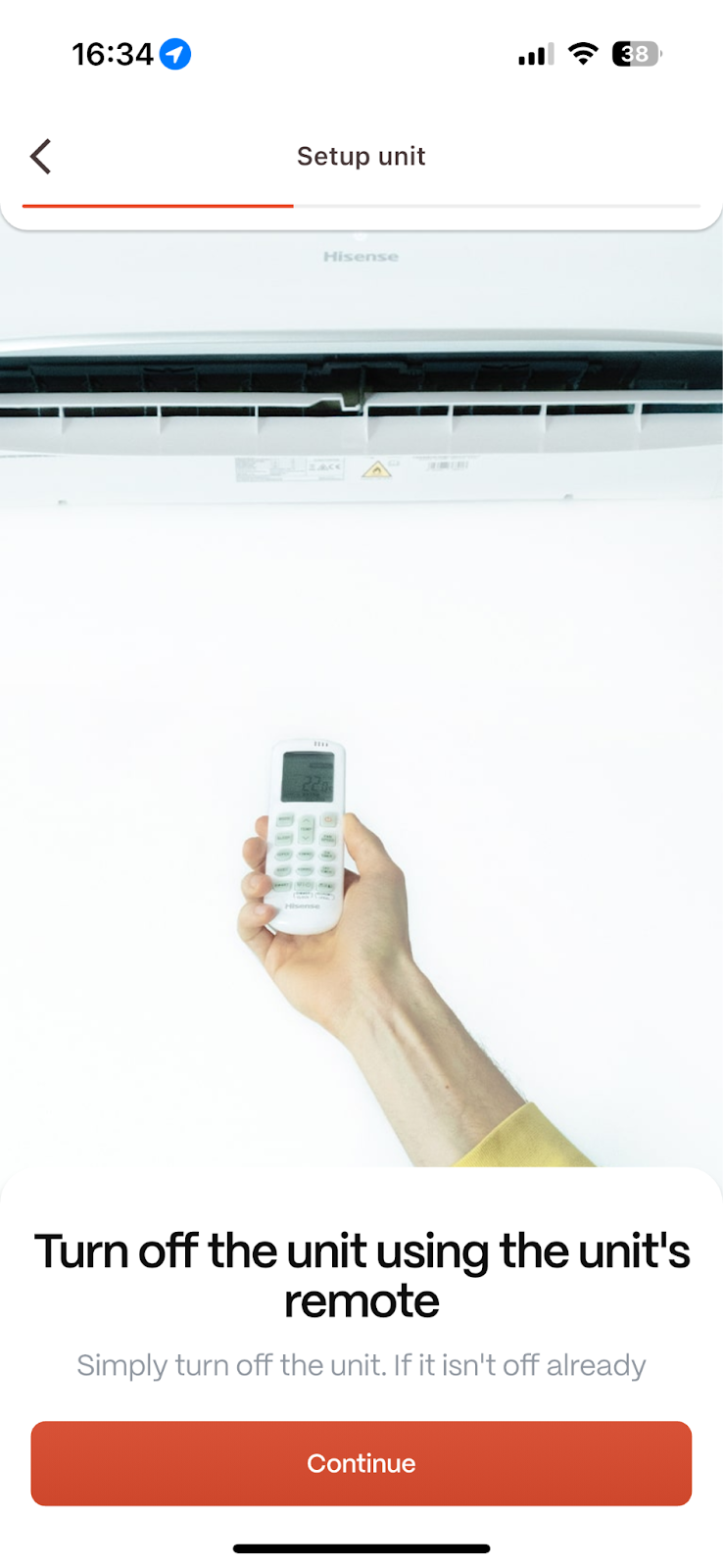
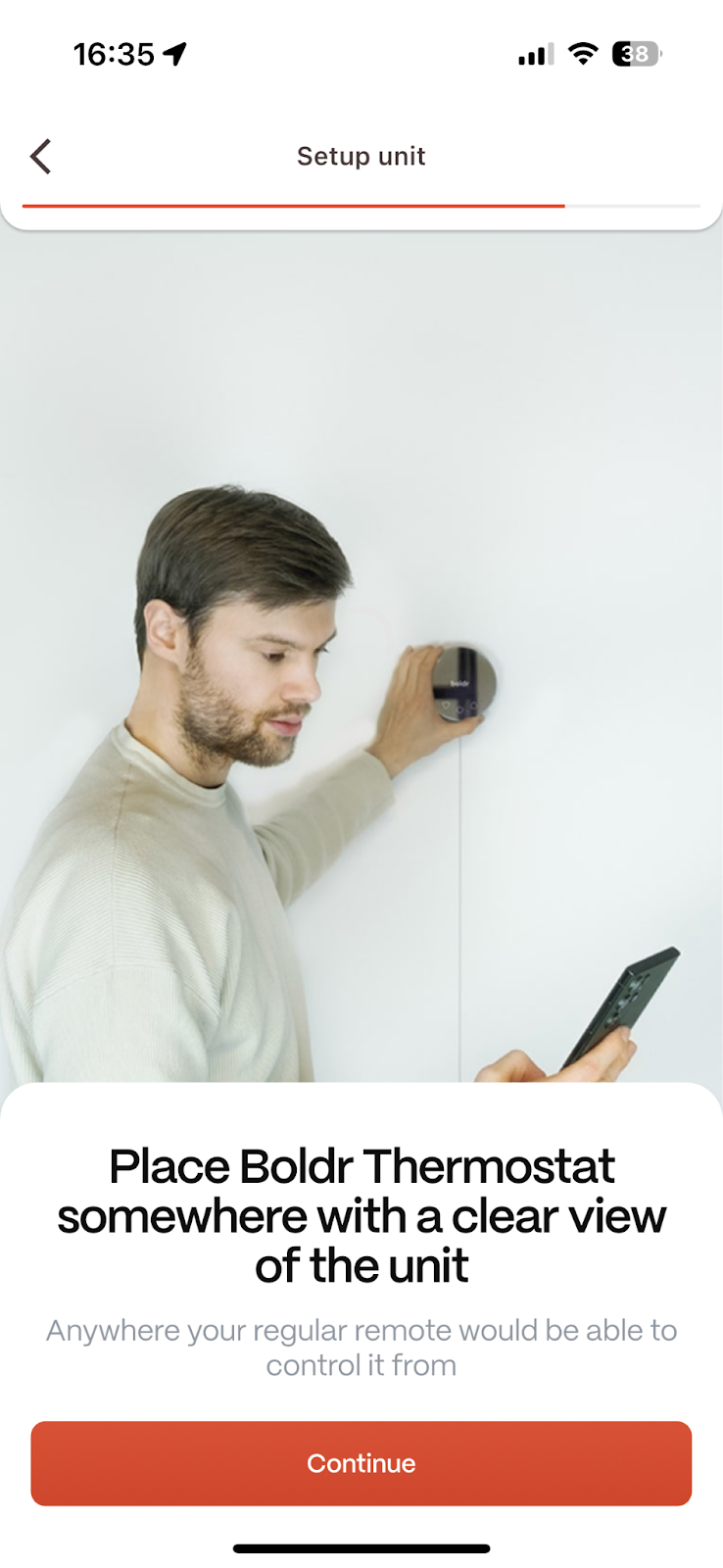
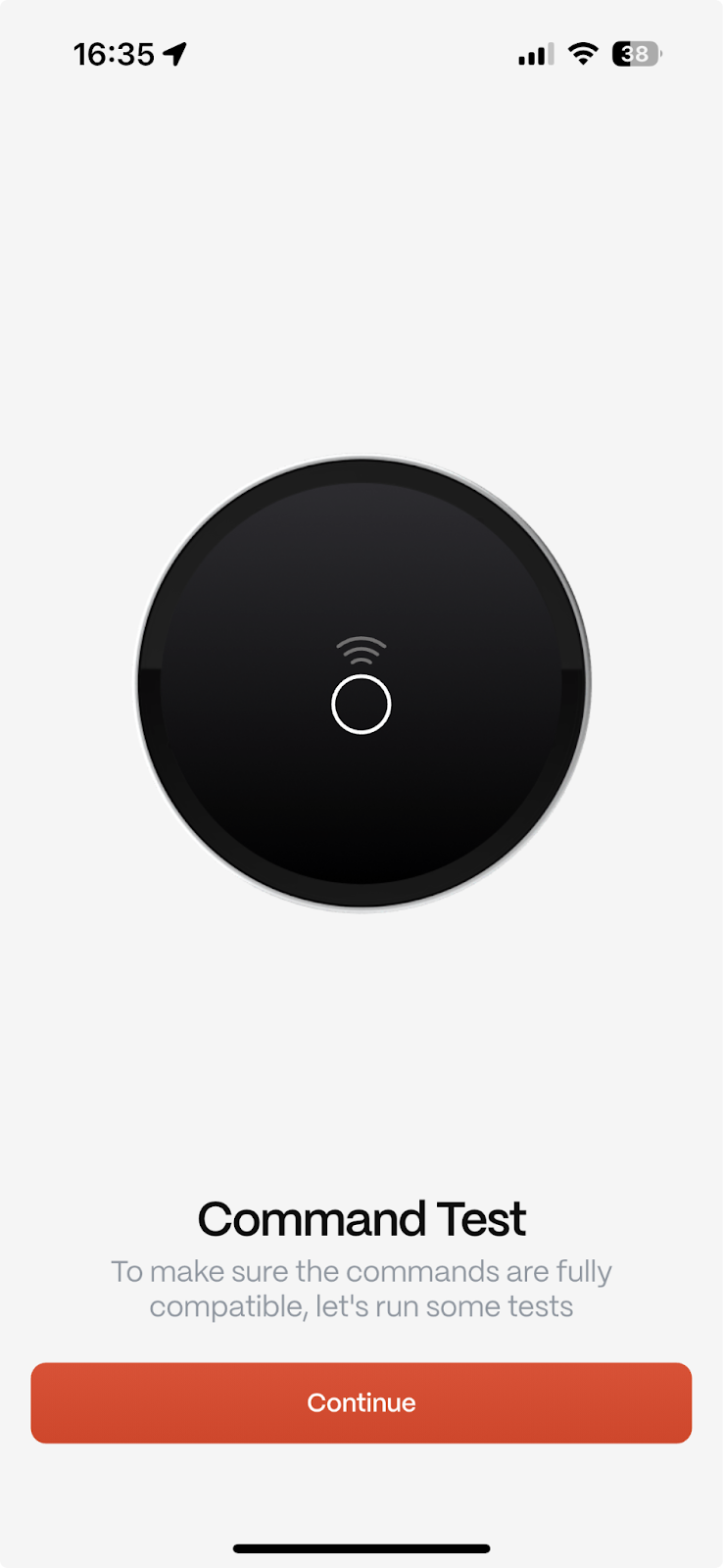
Once testing is complete, the setup is finished! You will be taken back to the property page.
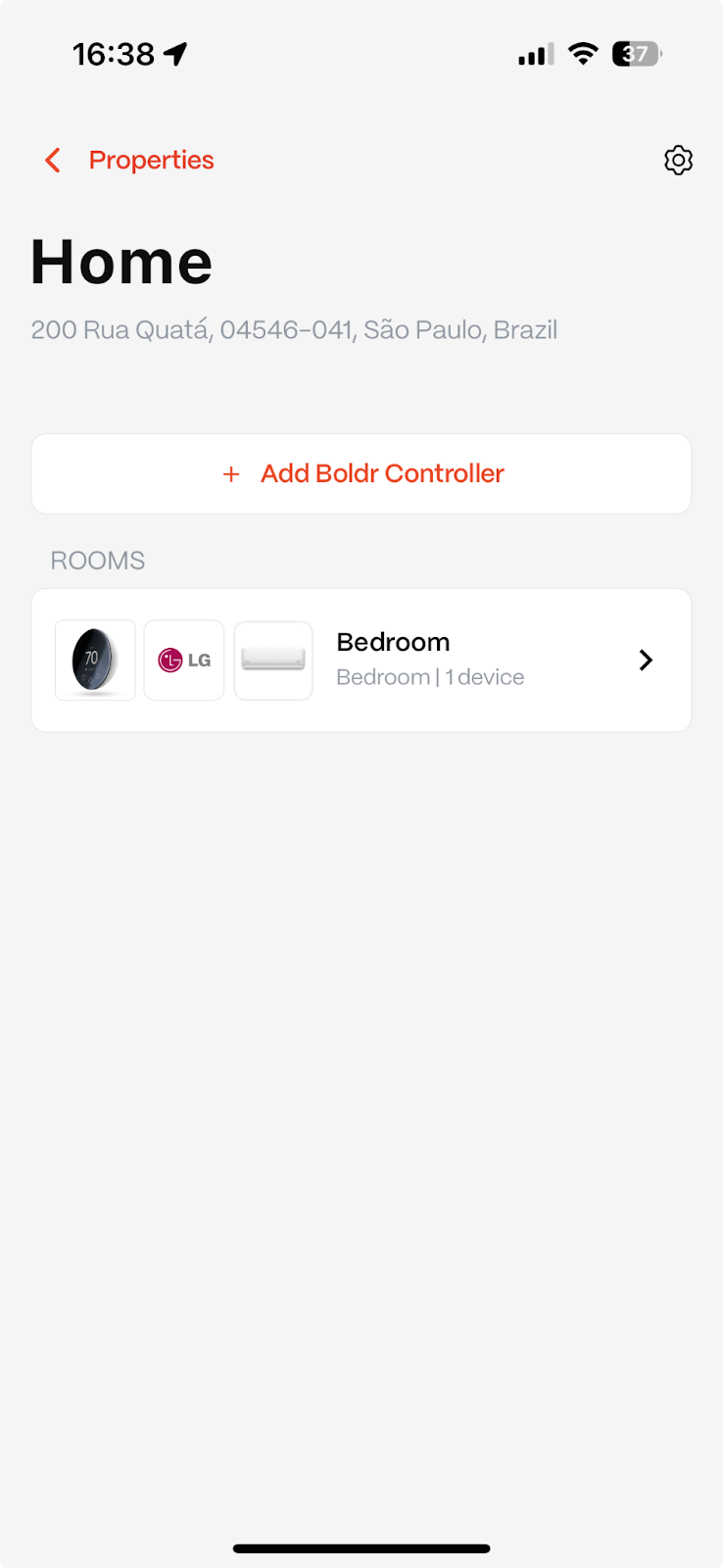
Part 4: Managing Multiple Controllers
Adding More Controllers
To add another Boldr Controller to the same property, simply repeat the process from Part 3, Step 1.
Using the Fast Track Option
If you are installing another controller on an identical A/C unit model, you can speed up the process.
After pairing the new controller, select the A/C unit you already configured.
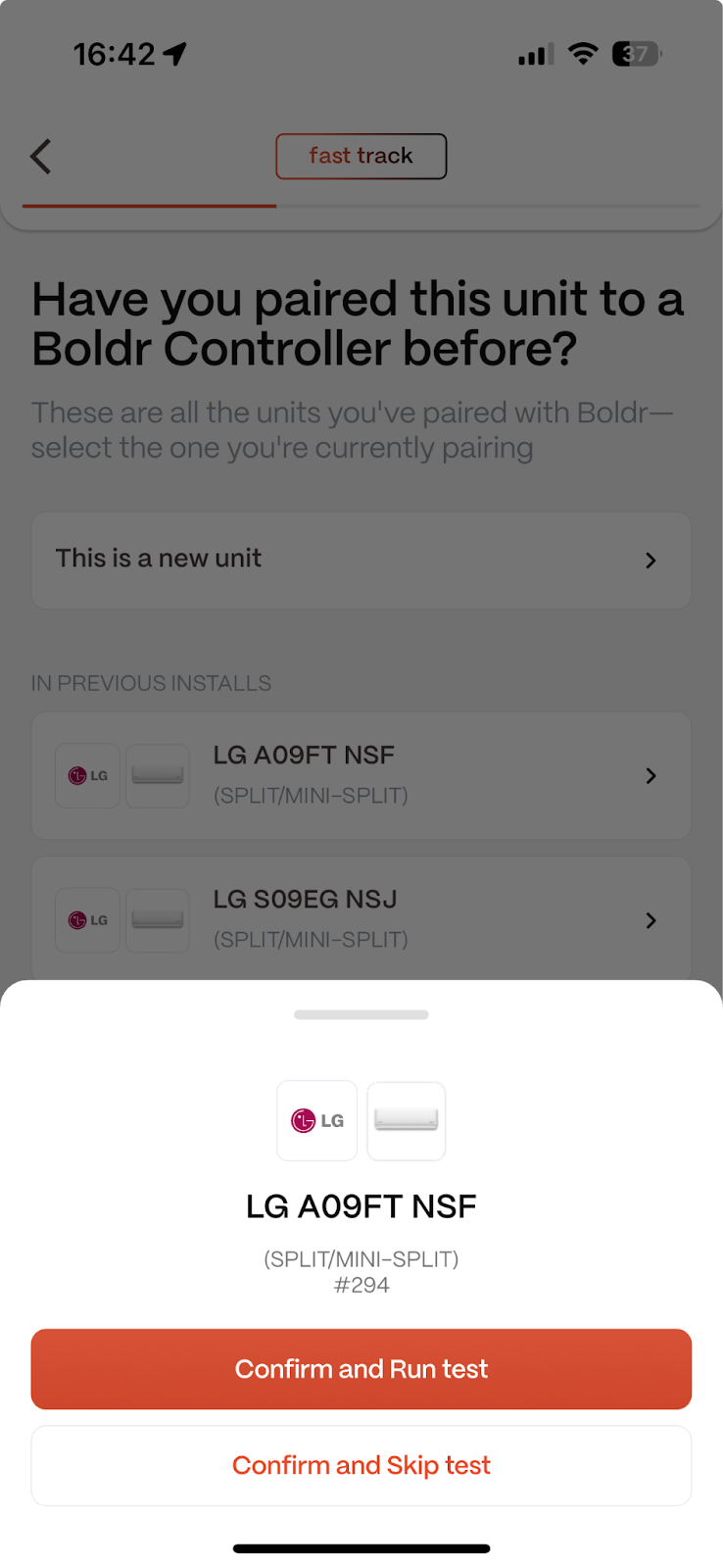
The app will offer a Fast Track option.
You can choose to re-run the tests (recommended) or skip the tests.
Skipping will instantly apply the previously confirmed command set to the new controller. Only use this if you are certain the A/C units are identical.
Need Help?
Contact our Live Pro Tech Support Team at +1 (888) 269-1303, Monday to Friday, 9 AM to 6 PM ET.